
What Is a CSV Product Import? Shopify Explained
Understand how Shopify transforms CSV rows into products and variants, why mapping matters, and how to avoid common CSV import mistakes for a smooth product upload.


What a CSV product import contains
You have a product list open in a spreadsheet, a Shopify store waiting for inventory, and no clear idea which columns Shopify will recognise. So what is a CSV product import? It's a structured file that turns rows of data into products, variants, images, inventory details, or updates, depending on how the fields are mapped.
Why mapping matters in Shopify
Most store owners don't have a CSV problem. They have a data-mapping problem. You upload the file, then wonder whether you've created clean products or a storefront full of missing images, broken variants, and incorrect stock details.
Shopify supports CSV imports when you move from another platform or make many product and inventory changes at once. Rows, handles, variants, images, and safe testing all matter. ShieldThemes can map, validate, and maintain catalog data for growing brands, although a small, simple catalog may not need agency support.
The Real Cost of Treating a Shopify Product CSV as a Bulk Upload
You aren't merely uploading product text when you import a CSV into Shopify. You're changing structured store data that may control prices, inventory, images, locations, and international selling details. A mapping mistake can reach customers before you spot it.
The strongest warning comes first: you can't cancel a Shopify product import after it starts. You need a backup and a small test file before your full catalog is involved.
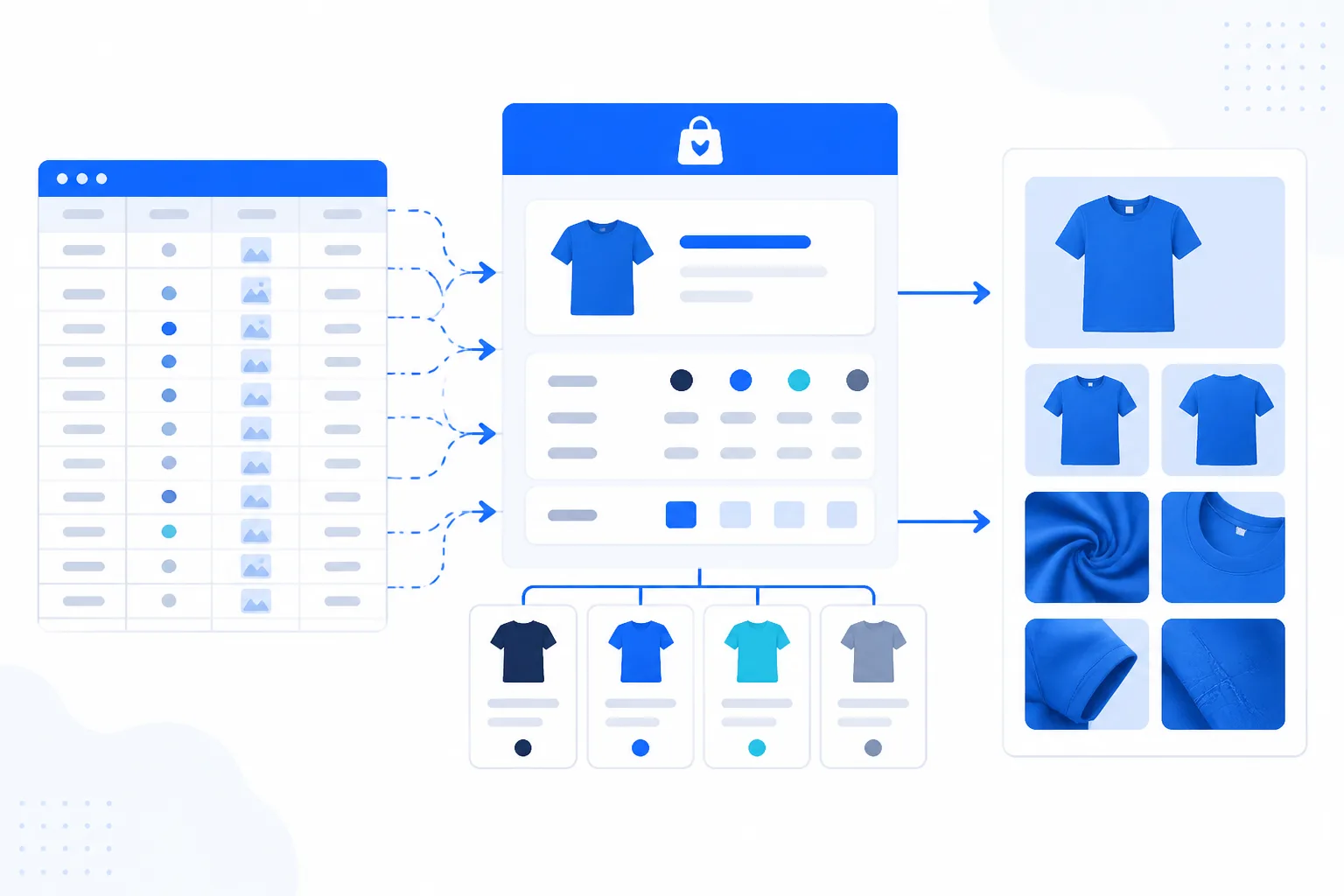
A CSV Import Changes Structured Store Data, Not Just Product Text
Shopify documentation explains that CSV files can import or export a large number of products and their details at the same time, according to Shopify's CSV product documentation. That scale saves time, but it also multiplies the cost of one incorrect column, blank value, or location setting.
Shopify also advises you to keep a backup of your product data before importing, according to Shopify's product import documentation. If you select the overwrite option, matching CSV values replace matching product values, while blank non-required fields can remove existing values.
“Product imports started with a CSV file can't be canceled once they begin,” according to Shopify's product import documentation.
The Handle Determines Whether Shopify Creates or Updates
Your product handle acts as the matching signal. A new handle can create a product, while an existing handle can update that product. Decide whether each row is creating new data or replacing data already selling in your store.
Weak approach: You upload “blue-cotton-shirt.csv” with existing handles, blank image fields, and overwrite enabled, then discover that product images have disappeared.
Safer approach: You test “blue-cotton-shirt” with its current image, price, and inventory fields included, then compare the result before touching your wider catalog.
The Practical Rule for Protecting Product Data Before Import
Shopify's sample file contains 2 example products and variants, making it useful for learning but unsafe to upload unchanged. Copy its structure, replace its sample records, and test products that cover images, locations, and international pricing before importing everything.
Practical rule: Back up your Shopify catalog, test a clean file with a few products, and only then import the full catalog.
How Shopify Turns CSV Rows into Products and Variants
A Shopify product CSV works as a set of instructions, not a decorated spreadsheet. Shopify reads the first line as the field map, then interprets each row through headers such as Title, URL handle, Option1 name, Option1 value, and Image Src.
That structure decides whether you create a product, add a variant, or update existing data. Your headers and row relationships matter more than how tidy the file looks in Excel.

What Import from CSV Means
Import from CSV means you give Shopify comma-separated product data that it converts into store records. For a new product, Title is the only required product CSV column, according to Shopify's documentation.
Start with this header row: Title, URL handle, Option1 name, Option1 value, Variant SKU, Variant Price, and Image Src. A first row containing “Harbor Cotton Shirt” can create the product, while its image URL attaches product imagery to that record.
Before: Product Name, Color, Price, Photo
After: Title, URL handle, Option1 name, Option1 value, Variant Price, Image Src
How to Add Products Using a CSV File
To add products using a CSV file, map each value to Shopify's recognised header, then upload rows that describe the product relationship. Shopify's documentation says the first line must contain the specified column headers.
For example, one row might read: Harbor Cotton Shirt, harbor-cotton-shirt, Color, Blue, 29.00, https://cdn.example.com/harbor-blue.jpg. A second row with the same handle and “Red” as the Option1 value becomes another variant under that product.
When you add variants to a new product, the URL handle is also required, according to Shopify's documentation. For an update, Shopify requires both the matching URL handle and Title, so matching handles shift the import from creation behaviour to update behaviour.
| situation | better move | why |
|---|---|---|
| Creating one new product | Include the Title column and the product data | Title is the only required column for a new product |
| Adding variants to a new product | Use the same URL handle and include Option1 name and Option1 value | The handle groups rows, while option fields describe the variants |
| Updating an existing product | Include the matching URL handle and Title | Shopify uses these fields to identify the product update |
| Updating variant-specific fields | Include the corresponding option fields with the variant data | Fields such as SKU or weight depend on the related variant |
From One Product Row to Several Shopify Variants
Shopify connects variant rows through the shared URL handle and the option fields. Option1 name identifies the option, such as Color, while Option1 value identifies the choice, such as Blue or Red.
Before: Harbor Cotton Shirt, harbor-cotton-shirt, Color, Blue, 29.00
After: Harbor Cotton Shirt, harbor-cotton-shirt, Color, Red, 29.00
You now have one product with two colour variants, not two unrelated products. The handle groups the rows, while Option1 name and Option1 value describe each variant.
Why Headers, Handles, and Image URLs Control the Result
Your header row controls interpretation, your handle controls identity, and your image URL controls attached imagery. A polished spreadsheet can still fail when those relationships are missing or inconsistent.
ShieldThemes can help with catalog mapping and Shopify implementation when your data model is complex, although a small, standardised catalog may be easier for you to prepare internally. For broader data protection, the WordPress backup and restore guide fits the same workflow, even though its platform examples differ.
Four CSV Mistakes That Make a Correct-Looking File Fail
You can open a CSV in Excel or Numbers, sort it, and still damage the relationships Shopify needs. The file may look tidy while product rows, image URLs, variants, and inventory locations no longer match.
You don't need a separate package to import products into Shopify. You need the right headers, intact row relationships, complete dependencies, and an export format your store can interpret.
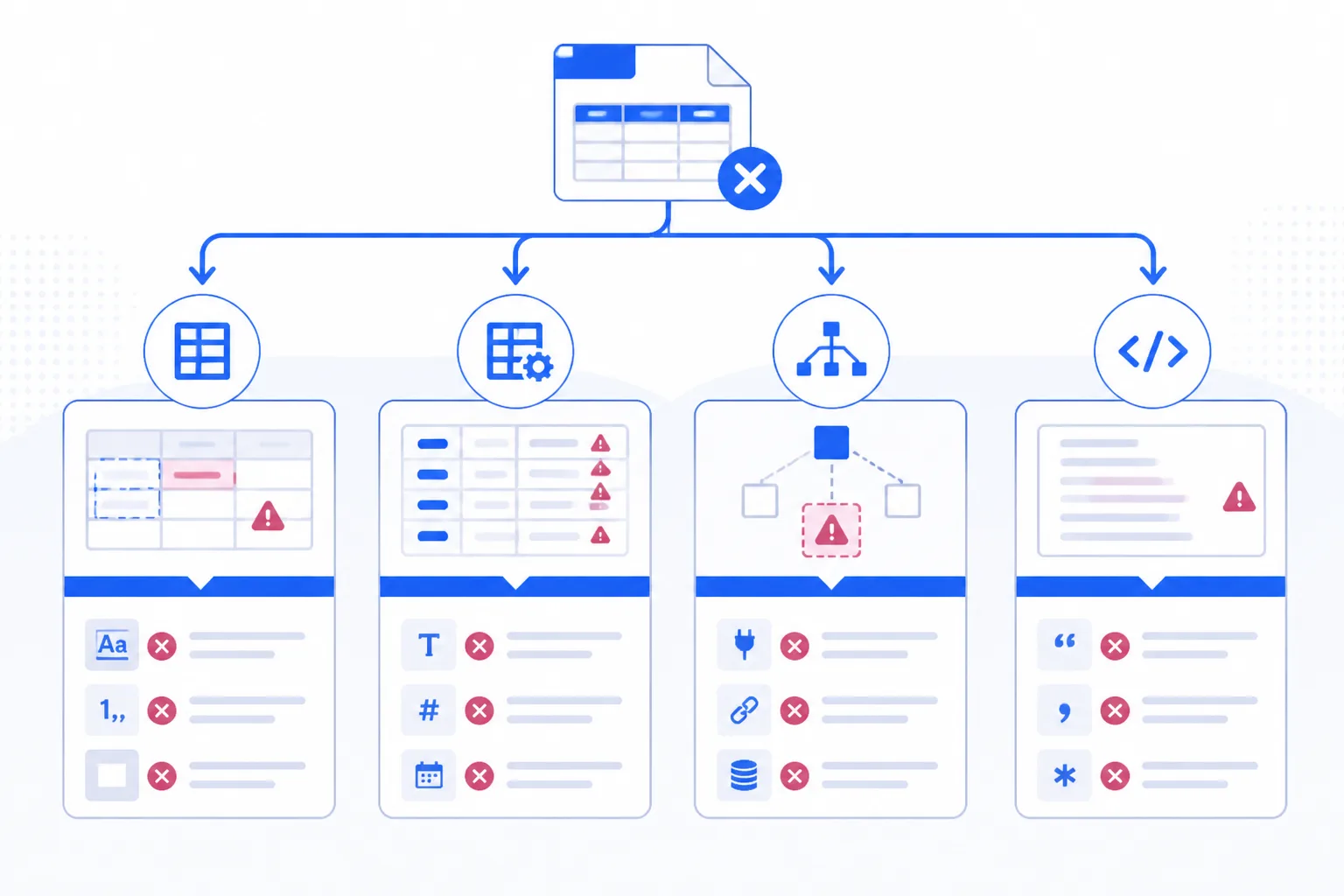
What a CSV File Is
A CSV is a plain-text, comma-separated file that your spreadsheet application can open. It isn't the same thing as an Excel workbook. When you sort rows in Excel or Numbers, you can separate a product from its image URL or variant data.
Weak version: “Sort by Product Name” is applied to only part of a catalog, leaving image rows tied to the wrong products.
Strong version: Preserve each product's complete row relationship, then verify image URLs after exporting the CSV.
What Reads a CSV
A CSV package or parser is developer software that reads CSV data, while Shopify's built-in importer reads your product file without requiring you to install one. You may encounter packages when building custom software, but a standard Shopify import depends on the file's structure.
Older templates can also make valid data look unfamiliar. Shopify supports backward compatibility, but current column names reduce mapping confusion. WooCommerce separately provides a built-in tool for importing, exporting, and bulk-updating products, according to WooCommerce documentation. That comparison doesn't change how Shopify interprets its own headers.
Weak version: Variant SKU is copied from an old template without checking Shopify's current column names.
Strong version: Map the file to Shopify's current headers before you export and import it.
When Spreadsheet Editing Damages Image Links
Image failures often begin after sorting, filtering, or re-saving a file. You may see missing images, incorrect product attachments, or image URLs that still look valid but point to another row's product.
| symptom | likely cause | first fix |
|---|---|---|
| Product images disappear or attach incorrectly | The file was sorted in Excel or Numbers, breaking image-row relationships | Restore the original row relationships and verify every image URL before importing |
| Variant data does not update as expected | Variant fields were included without their required option dependencies | Add the matching Option1 name and Option1 value data |
| The file uses unfamiliar or confusing headers | An older CSV template was used | Map the file to Shopify's current column names |
| Inventory quantities are wrong across locations | The single-location Inventory quantity column was used for a multi-location store | Use Shopify's inventory CSV for location-specific quantities |
When a Valid-Looking Column Still Lacks Its Dependency
Variant fields depend on related option fields, so a SKU or weight alone may not update the variant you expect. Add the matching Option1 name and Option1 value, then check whether your store uses multiple locations before setting inventory.
For a single-location store, the sample inventory quantity column may fit. For a multi-location store, use Shopify's inventory CSV instead of assuming one quantity applies everywhere. Before importing, export as UTF-8 CSV when your spreadsheet allows it, a format WooCommerce also recommends for product imports according to its documentation.
FAQ
What does import from CSV mean
Import from CSV means uploading a comma-separated values file so Shopify can create or update product records in bulk. Each column represents a field, such as the product handle, title, SKU, price, or image URL. Shopify reads the header row first, then applies each later row to the matching product or variant.
How to add products using a CSV file
Download Shopify's current product CSV template, keep its header row, and replace the sample data with your products. Add the handle, title, descriptions, variants, prices, inventory details, and publicly reachable image URLs. Save the file as UTF-8 CSV, then open Shopify's product import tool, upload the file, review the preview, and start the import.
Is a CSV file just an Excel file
No. A CSV file is plain text with values separated by commas, while an Excel workbook can contain formulas, formatting, multiple sheets, and other features. Excel can open and save CSV files, but saving may change formatting or remove workbook features. For a Shopify import, export a clean UTF-8 CSV and check the resulting file before uploading it.
What package reads CSV
In Python, the standard library's csv module reads and writes CSV files without an extra installation. The pandas package is another common choice when you need to filter rows, inspect columns, or transform product data before import. For a small Shopify file, the standard module is often enough. Always check delimiters, encoding, and empty values before export.
Start with One Safe Shopify Product CSV Import
You don't need to risk your full catalog to prove that a Shopify CSV import works. Your first test should use one real product, its variants, and the smallest file that lets you inspect the result.
A current template gives you a safer starting point than a random free Shopify product CSV download. You can check the columns, preserve your backup, and expand only after Shopify creates the product as expected.
Start with One Product Row and One Test Import
Download Shopify's sample product CSV or use a current Shopify CSV template. Remove the two example products and their variants before adding your data. Keep the header row intact, because Shopify uses it to interpret every later row.
Weak version: you download a free template with columns such as Product Name and Stock Count, then assume Shopify will recognise them.
Use a checked template: you confirm that the first row contains Shopify's current headers, then map “Trail Runner Jacket” to its handle, option fields, variant SKU, price, and publicly reachable image URLs.
- Template: You have checked the sample file against Shopify's current documentation.
- Example data: You have removed both sample products and mapped one real product with every variant.
- Headers: You have kept Shopify's header names and confirmed that values remain comma-separated.
- Images: You have opened each image URL in a browser without logging in.
- Backup: You have preserved your original product data before testing the import.
The Six-Step Sequence from Sample File to Verified Catalog
- Download the foundation: You start with Shopify's sample product CSV or a current template, not an unverified free file.
- Clear the examples: You delete the two example products and their variants while keeping the header row unchanged.
- Map one product: You add one real product, its handle, variants, matching option names and values, SKUs, prices, and image URLs.
- Check the file: You confirm the current headers, comma-separated values, UTF-8 export, reachable images, and a preserved data backup.
- Run the smallest test: You import the single-product file, then inspect the product, variants, images, pricing, and inventory inside Shopify.
- Expand with evidence: You add the rest of the catalog only after the test product matches your source data.
If your catalog includes multiple locations, international pricing, or a platform migration, a senior team can validate the mapping before you scale it. ShieldThemes handles Shopify development, catalog preparation, and ongoing maintenance, although a simple one-product test remains the right first move for your store.
If you want help preparing and testing your Shopify catalog, ShieldThemes maps complex product data, validates imports, and provides Shopify development and ongoing maintenance for startups and growing brands. You can find practical web development and e-commerce guides for the decisions behind dependable store work.