
WordPress Backup and Restore: Step-by-Step Guide
This guide walks you through verifying, backing up, and restoring your WordPress site with both plugin and manual methods to secure your content and settings.


You open your store after an update and meet a blank screen. Recent orders have vanished, or your administrator login simply stops working. With customers waiting, you search for “WordPress backup and restore” and find guides that begin with creating a backup instead of checking whether it’s complete, usable, and safe.
Most WordPress owners don’t have a backup problem. They have a recovery-readiness problem. UpdraftPlus explains that a backup protects your content, settings, and hard work, while a usable recovery process helps you avoid rebuilding from scratch after a failure.
This guide covers the practical work: preserve the current state, verify the files-and-database pair, choose a matching restore point, restore safely, and test privately before visitors return. ShieldThemes applies these production-minded checks when maintaining WordPress sites, although every hosting setup and backup tool has limits. You’ll see both plugin and manual paths, so you can recover with evidence rather than hope.
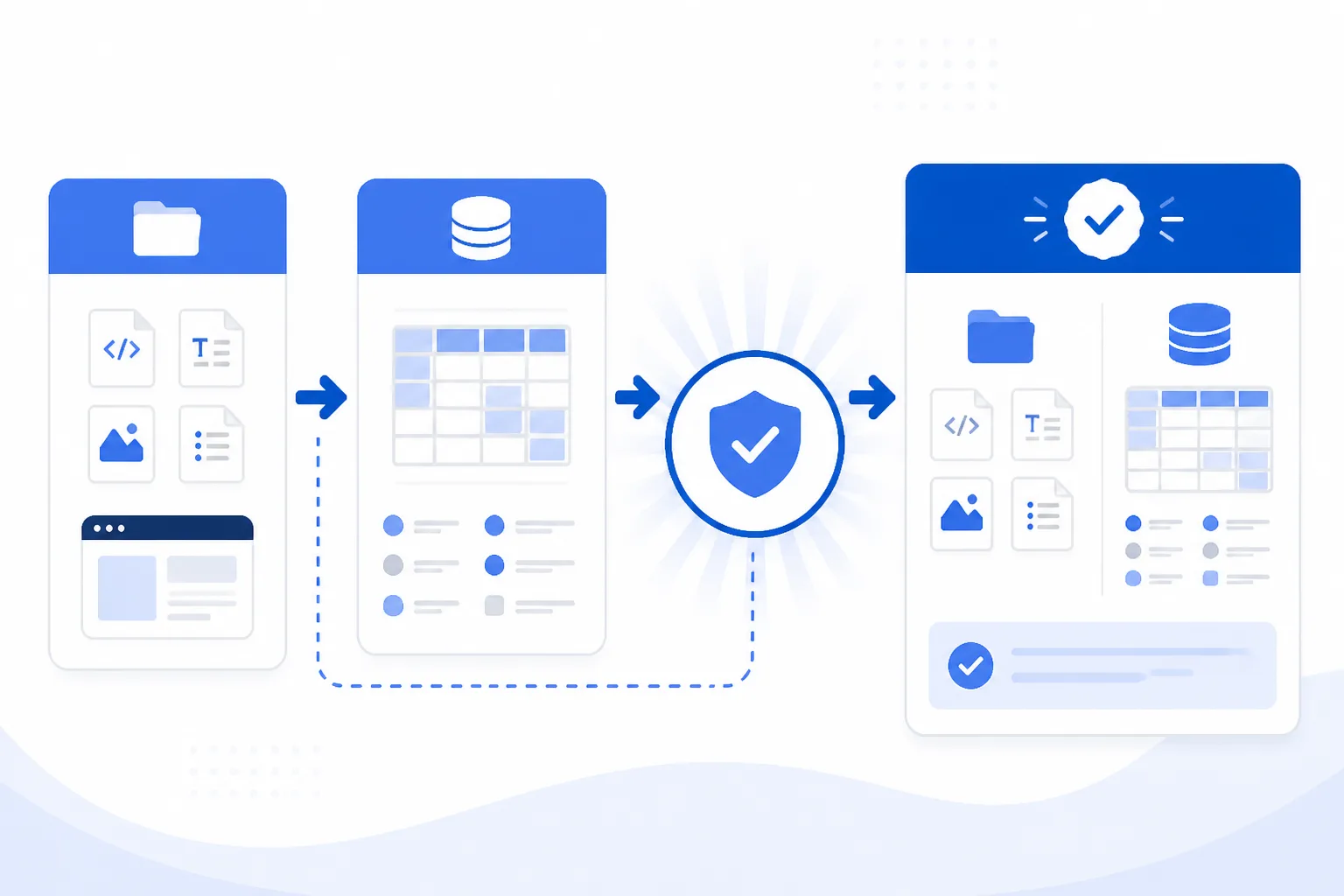
A Backup Only Helps When It Contains Files and the Database
A downloaded folder can look reassuring while your orders, pages, settings, and user accounts remain trapped in a missing database. Restore only one half and you may recover a shell of your site rather than the working store you had before the failure.
You need a matching copy of the site files and database, stored outside the WordPress installation and checked for recovery. That distinction separates having a backup from having one you can restore.
Whether WordPress Has a Backup
WordPress doesn’t automatically give you a complete, independently verified backup simply because you installed it. Your hosting provider may offer snapshots, but you still need to confirm what they contain, where they’re stored, and whether you can restore the correct point in time.
A backup plugin can protect both your files and database without requiring backend work, according to UpdraftPlus. Its convenience helps, but the plugin itself isn’t proof that a usable copy exists.
Choosing a WordPress Backup Solution
The best solution gives you off-site storage, scheduled protection, access to matching files and database data, and a tested recovery path. A plugin is often the quickest option for automation, while hosting snapshots can provide broader server recovery. Manual FTP and phpMyAdmin exports give you direct control.
An FTP download contains files only. A phpMyAdmin export contains the database only. If you keep either export alone, you can’t reliably rebuild your site. For a growing US business, ShieldThemes can manage a backup policy, although recovery still depends on your hosting access, storage retention, and regular testing.
Practical rule: Keep an off-site copy of your WordPress files and matching database, then verify that both can restore before you trust them.
How Often to Back Up Your WordPress Website
Your schedule should follow how quickly your site changes. A brochure site may need less frequent protection, while an active store needs backups close to its order, customer, and product-update volume. Create a fresh recovery point before major plugin updates, theme changes, migrations, or database work. A safe WordPress plugin update process fits the same workflow because it covers the change that may require recovery.
Build a Complete Recovery Set
Safe recovery starts before you change production. You need a matching files archive and SQL database, plus a record of the site you’re about to replace.
Don’t treat a downloaded folder as a complete recovery set. UpdraftPlus explains that FTP downloads site files but not the database, while phpMyAdmin exports the database without site files. Both parts are required.
How to take a full backup of a WordPress site
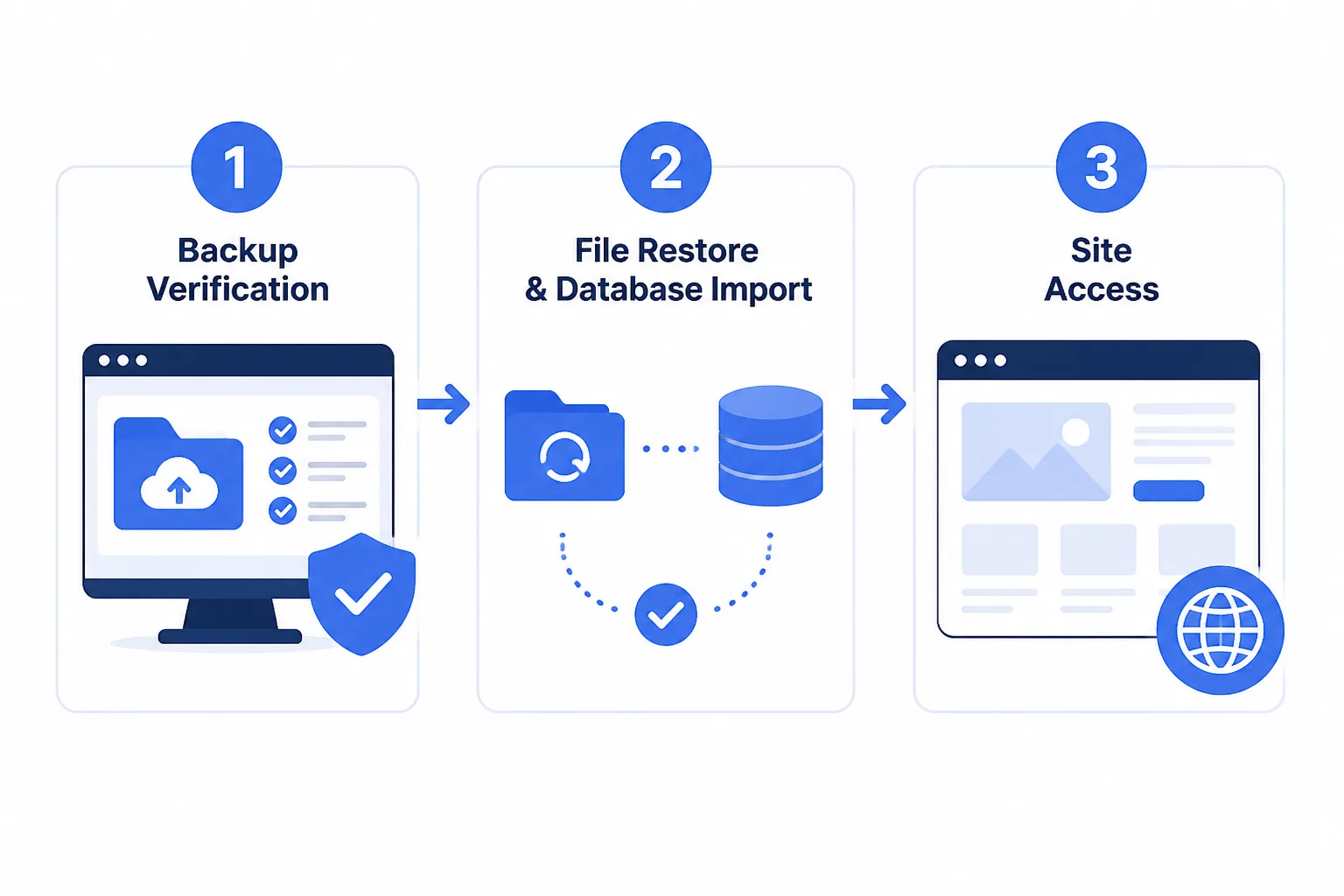
Take a full backup by identifying the recovery point, confirming that both parts belong together, and downloading them locally.
- Identify: Record the backup timestamp, site domain, known WordPress version, and the tool that created the archive.
- Match: Confirm that the files archive and SQL export were created together. Success means their dates and backup labels agree. Failure means you may restore old files with newer orders missing.
- Download: Save both files to your computer and confirm that each archive finishes downloading and opens. FTP alone is incomplete, according to UpdraftPlus, 23 August 2024.
How to restore a WordPress site from a backup
Restore a WordPress site by preserving its current state, restoring the files first, and importing the matching database second.
- Record: Save the hosting account, database name, database user, and credentials from a secure source. Export the current database before overwriting anything.
- Restore files: Upload and extract the verified archive. Success means wp-content, configuration, themes, plugins, and uploads are present. Never delete live files first.
- Restore database: Use the hosting panel or phpMyAdmin to import the matching SQL file. An unrelated database can show the wrong orders, users, or settings.
How to download a WordPress backup
Download your WordPress backup from the hosting panel or backup plugin, then save the files archive and SQL export in one dated local folder.
- Folder name: Use a clear label such as acme-store-2026-11-04.
- Archive check: Confirm the download completed and the files open before restoration.
- Recovery check: Verify that the domain and timestamp match the intended restore point.
How to export an entire WordPress site
Export your entire WordPress site by combining its files, uploads, themes, plugins, configuration, and database content. ShieldThemes can perform this sequence on staging when production risk is high, although staging still requires accurate credentials and a verified backup.
Find the Failure by Matching the Symptom to the First Fix
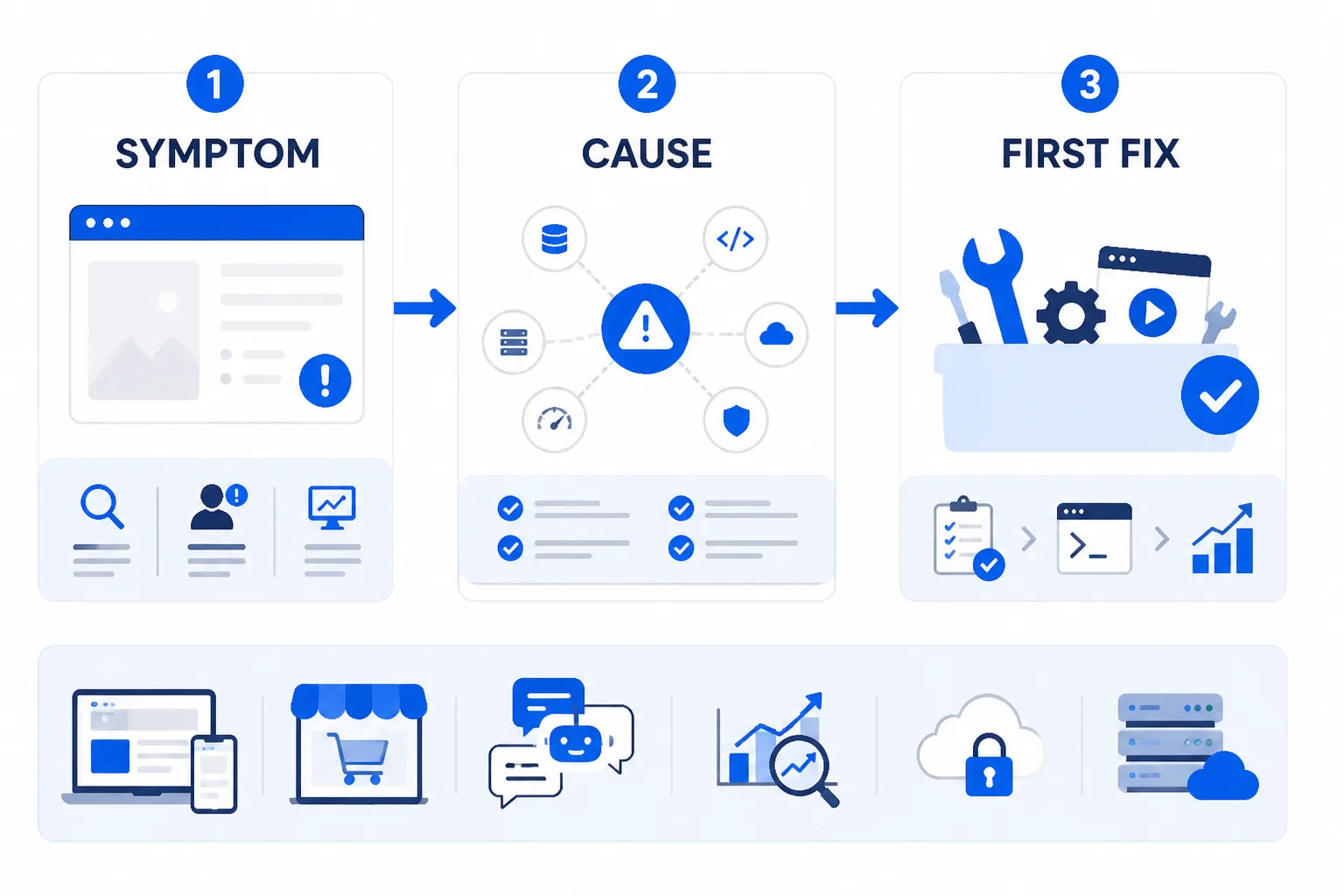
A restored site can look complete while customers still face broken pages, missing orders, or failed logins. You need a quick triage method before changing production again.
Match what you see to the first conservative check below. You can isolate the fault without repeatedly overwriting the recovered site.
A Blank or White Screen After the Restore
Use this table as your first diagnostic pass. The cause may be incomplete files, a disabled or incompatible plugin, incorrect URLs, or a database mismatch rather than a failed backup and restore.
| symptom | likely cause | first fix |
|---|---|---|
| White screen or fatal error | Incomplete files or a plugin and PHP conflict | Check the error log, confirm the archive extracted completely, and disable the suspected plugin from the file system |
| Old content or missing orders | The wrong or mismatched database was imported | Compare the database timestamp with the files archive and restore the matching SQL export |
| Broken images | The uploads directory was omitted or file paths are incorrect | Verify wp-content/uploads exists, compare permissions, and inspect the media URLs |
| Redirect loop | Incorrect site URL or conflicting HTTP and HTTPS settings | Check WordPress URL values, canonical redirects, and proxy or SSL settings before clearing caches |
| Site loads but logins or orders fail | Wrong database, permissions, stale sessions, or cached application state | Test the database connection, confirm user tables and permissions, purge caches, and run a private checkout |
Older Content Appears After Recovery
If you see old pages or missing orders, compare the SQL export and files archive timestamps. Verify the pair before importing anything again.
Images, Links, or Logins Fail After Recovery
Missing uploads usually point to an incomplete archive or incorrect paths. Broken links and login failures also require permission checks, session clearing, and URL verification.
Weak setting: WordPress Address: http://acme-store.com; Site Address: https://acme-store.com.
Strong setting: WordPress Address: https://acme-store.com; Site Address: https://acme-store.com.
The Restored Site Loads but Isn’t Safe to Reopen
Test administrator access, forms, orders, media, and email privately before reopening the site. Check permissions and caches first, then use a private checkout to confirm the recovered business site can accept real customer activity.
Questions to Ask Before Choosing a Recovery Method
You may have several workable recovery paths, but the safest choice depends on where your copies exist and whether you can verify them. These answers help you choose without experimenting on a production store or startup website.
Choosing a Free WordPress Backup Plugin
A good free WordPress backup plugin creates both file and database copies, supports remote storage, shows what each backup contains, and allows restoration. Don’t choose one based only on popularity. Check whether your copy remains available outside your WordPress dashboard, because a backup visible only inside a failed site may disappear with that site.
Backing Up a WordPress Site Without a Plugin
You can back up WordPress without a plugin by downloading your files through FTP or your hosting file manager, then exporting the database with phpMyAdmin. You need both parts. Weak backup: download only public_html. Strong backup: download the complete site files and export the matching database, then store both outside your hosting account.
Backing Up a WordPress Site
To back up your WordPress site, copy its files, export its database, record the WordPress version and key settings, and store the recovery set somewhere external. Run a manual backup before updates or major edits. Then inspect the archive contents and confirm you can access the copies without logging into your website.
Using the UpdraftPlus WordPress Backup Plugin
Install UpdraftPlus, connect remote storage, run a manual backup, and confirm that the file and database components finish successfully. Weak setup: keep completed copies only in the WordPress uploads folder. Strong setup: send the copies to remote storage, verify them there, and test restoration on a staging site before relying on them.
Recovering a WordPress Website That Has Disappeared
Contact your host first, preserve logs and billing access, and check remote storage, hosting snapshots, and your own downloaded archives. Don’t overwrite the account with an unverified backup. A copy inside the failed dashboard may be unreachable, while an external copy can support a controlled restore. ShieldThemes can take over when your production site, store, or startup launch can’t safely support experimentation.
Use a Five-Check Recovery Sequence Before Reopening the Site
A recovered WordPress site isn’t ready just because the homepage loads. Protect the damaged version, confirm that your recovery files belong together, and test the journeys that keep your business running.
Use the sequence below before you remove maintenance controls. It reduces guesswork, preserves evidence, and gives your team a clear point at which reopening becomes safe.
Preserve the Current Site Before Changing It
Before you overwrite anything, preserve the site as it exists now. You may need its files, database, logs, or error messages to explain the failure or recover newer customer activity.
Verify and Select the Recovery Set
Check that your proposed recovery contains both matching components. Compare the failure time, last known good transaction, and backup timestamps before choosing the point that loses the least business data.
Restore, Test, and Reopen Deliberately
Run the restoration on staging when possible, or keep production behind maintenance controls. Restore the files and database in the documented order, then keep the site closed until your private checks pass and caches are refreshed.
- Preserve the current state: Save a snapshot or copy the present files and database before you overwrite anything.
- Verify the recovery pair: Download and open-test a matching files archive and SQL database export from your backup location.
- Choose the restore point: Compare timestamps with the failure and last known good transaction, including orders and customer updates your store may lose.
- Restore in isolation: Rebuild the files and database on staging or behind maintenance controls, following your host or backup tool's documented order.
- Test one recovered page first: Check the homepage, administrator login, media, forms, email, analytics, integrations, products, cart, checkout, and recent orders.
- Page check: Key templates load without errors, missing assets, or broken internal links.
- Access check: You can sign in as an administrator and use essential dashboard functions.
- Commerce check: Product pages, cart, checkout, payment, and recent orders behave correctly.
- Delivery check: Forms, email notifications, analytics, and connected services receive expected data.
- Cache check: You have purged relevant caches and confirmed visitors receive the recovered version.
If you want help with this work, ShieldThemes builds and maintains WordPress sites, hosting, security, and recovery routines for growing businesses. The WordPress guidance library offers practical support for keeping that work documented and repeatable.