
WordPress SEO Without a Plugin: A Step-by-Step Guide
Discover how to optimize your WordPress site’s SEO using built-in features and simple code additions, ensuring clear URLs, proper tracking, and sitemap discovery.


You’re editing a WordPress site that already works, comparing SEO plugins and wondering whether one unchecked box could cause trouble. You want better visibility, but you don’t want duplicate settings, broken metadata, or another subscription to manage. WordPress SEO without a plugin can keep the setup focused when you handle the fundamentals carefully.
Most WordPress sites don’t have a plugin problem. They have a configuration or content problem. You need to verify the settings WordPress already provides, publish useful page content, confirm tracking, and check that search engines can find your XML sitemap. Start with those basics, then add only the code or service your business genuinely needs. ShieldThemes can make safe theme or technical changes when your existing site needs careful work, although hands-on development isn’t necessary for every SEO task.
What You Gain by Removing an Unnecessary SEO Layer
Adding an SEO layer before checking your native WordPress controls creates hidden work. You may get overlapping settings, unclear ownership, harder troubleshooting, and another update to monitor. A blocked visibility setting can also stop your site from being discovered properly.
WordPress provides control over permalinks, site visibility, published content, and sitemap discovery, according to WordPress documentation on reading settings. Lightweight direct code can handle tracking when a plugin would only duplicate settings your site already provides. Removing an unnecessary layer does not mean removing SEO discipline. It means putting each job in the simplest safe place.
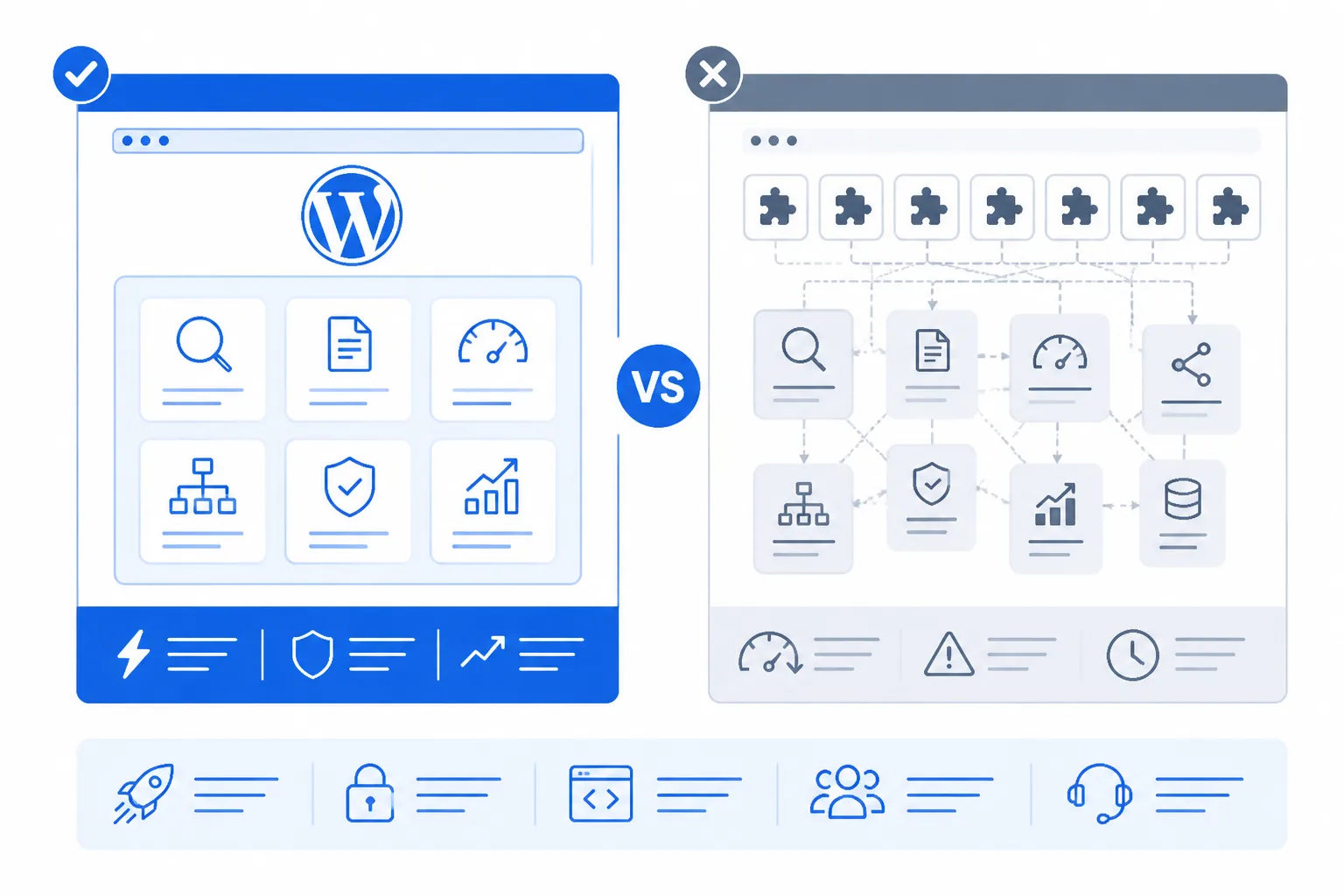
How do you keep WordPress discoverable before page-level SEO
Start with the controls that affect every page. Check search visibility, permalink structure, published status, and sitemap location before changing titles or descriptions. You’ll troubleshoot faster when one system owns each decision.
Weak setup: “Discourage search engines from indexing this site” remains enabled while you optimize product pages.
Strong setup: Your live store allows search visibility, uses readable permalinks such as /blue-running-shoes/, and confirms the XML sitemap address before you publish more content.
Practical rule: A plugin should solve a real requirement rather than duplicate native WordPress settings.
How much SEO setup does your site need
Use this decision framework when you assess WordPress SEO without a plugin:
| Site need | Best first choice | Why it fits |
|---|---|---|
| Native visibility, permalinks, or sitemap discovery | WordPress settings | You keep ownership clear and avoid duplicate controls. |
| Simple analytics or tracking code | Small, reviewed code addition | You avoid installing a full SEO layer for one narrow task. |
| Advanced schema, redirects, or editorial workflows | Maintained specialist tool | You add software only when the requirement exceeds native features. |
A nulled plugin WP download is not a shortcut. It introduces unsafe, unmaintained software when trusted code or a maintained tool may solve the need. ShieldThemes can assess whether your site needs custom code, a plugin, or broader implementation, although a development review isn’t necessary for every routine SEO setting.
Configure WordPress SEO in the Order Search Engines Need It
Your site can lose clarity before you publish a single SEO-focused article. If the two site addresses differ, URLs are messy, tracking is misplaced, or your sitemap is missing, fix those problems before adding more software.
Follow the sequence users and search engines depend on: one site address, readable URLs, useful content, reliable measurement, and a discoverable site structure. Test each foundation before expanding your SEO setup.
- Confirm one site address: In Settings > General, make the WordPress Address (URL) and Site Address (URL) match. Both should use the same HTTPS domain. A mismatch can split references between versions of your site.
Weak: WordPress Address: http://acmebikes.com; Site Address: https://www.acmebikes.com.
Use one address: Both fields use https://acmebikes.com.
- Choose readable permalinks: Select Post name under Settings > Permalinks, then save. A product guide should use /bike-maintenance-guide/, not /?p=482. Check existing links before changing a live site.

Free SEO controls to use first
WordPress’s native SEO controls are the free tools to use first, so you can establish the basics without installing a full SEO plugin. Extra software becomes useful only when your site needs features such as advanced redirects or editorial controls.
Must-use plugins in WordPress
Must-use plugins are files loaded automatically from your site’s special mu-plugins directory, so you don’t activate them through the normal Plugins screen. Use them only when your developer deliberately maintains the code, because hidden ownership can make troubleshooting harder.
Add Google Analytics to WordPress without a plugin
Add Google’s tracking script directly to the intended site-wide head location through your theme or a maintained code implementation, then test collection and reporting. A successful test shows a visit in Analytics without duplicate tags.
Weak: Paste the same Google tag into the theme header and a second custom-code field.
Add once: Place one verified tag in the maintained head implementation and test one visit.
Generate a sitemap in WordPress
Open your domain followed by /wp-sitemap.xml to locate WordPress’s built-in XML sitemap. The file should load and list your active content types. If it fails, check whether WordPress visibility settings or custom code is blocking it.
- Content: Publish readable, useful copy that answers one clear visitor need.
- Measurement: Confirm Analytics receives a test visit without duplicate tracking.
- Discovery: Confirm the built-in sitemap loads at the expected address.
Test each foundation before adding advanced tools. ShieldThemes can customize the implementation when your site needs maintained code, though routine settings rarely require a broader build.
Find the Breakpoint Before You Blame WordPress SEO
When your WordPress SEO without a plugin setup appears ineffective, the problem may be one incorrect basic control rather than the platform itself. A startup can lose visibility because URLs are unclear, the site address differs between settings, or search engines are blocked.
Check one failure point at a time. That keeps your diagnosis reliable and helps you preserve a working theme instead of replacing it unnecessarily.
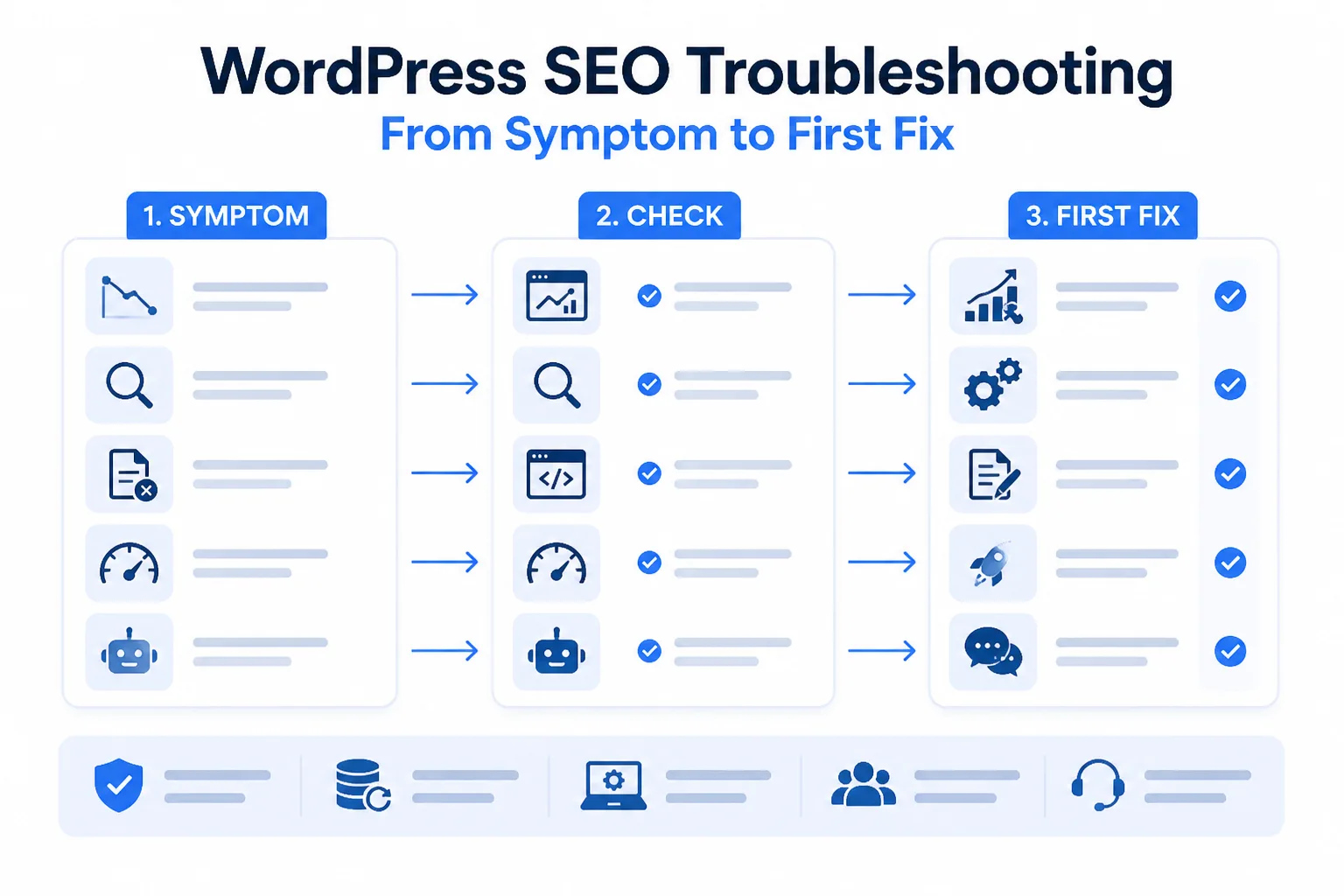
Readable URLs that still lead to the wrong address
Compare the symptom with the smallest likely cause. A readable permalink structure helps, but mismatched WordPress Address and Site Address values can still create a foundational problem.
| Symptom | Likely cause | First fix |
|---|---|---|
| Page URLs are difficult to read or do not describe the content | A non-readable permalink structure is selected | Choose Post name under Settings > Permalinks and test existing links |
| The site resolves through inconsistent addresses | The WordPress Address and Site Address do not match | Compare both URL settings and correct the mismatch carefully |
| Pages are not appearing in search visibility checks | A WordPress visibility setting is blocking search engines | Review the site visibility setting and confirm the site is allowed to be indexed |
| Analytics reports no visits or shows incomplete data | Tracking code is missing or placed incorrectly | Check the direct tracking implementation and verify it on a live page |
| The sitemap URL cannot be opened or found | The built-in sitemap route is unavailable or its location has not been checked | Locate the WordPress XML sitemap and test the URL before adding another tool |
Weak setting: Your product page uses example.com/?p=1842, which gives visitors little context.
Strong setting: Your product page uses example.com/blue-canvas-backpack/ after you select Post name and test the link.
Tracking that records nothing after installation
If your pages load but Analytics shows no visits, you may have placed tracking code incorrectly or omitted part of the implementation. Test one live page directly before changing plugins, themes, or measurement tools.
Sitemaps and pages that cannot be found
A blocked visibility setting can prevent search visibility regardless of your other work. An unavailable sitemap creates a discovery problem, so test the built-in XML sitemap before adding another tool.
Weak response: You install a broad SEO plugin after one sitemap check fails.
Strong response: You test the sitemap URL, correct one setting, and retest every affected page before changing your working theme. ShieldThemes can investigate safely when code or configuration requires maintenance, although routine settings rarely need a broader build.
WordPress SEO Sitemap Questions to Answer Before You Publish More Pages
You may be unsure whether a sitemap improves rankings, where WordPress stores it, or whether another plugin is necessary. The key distinction is simple: an XML sitemap helps search engines discover URLs, but it does not directly raise those pages in search results.
When your built-in WordPress sitemap covers your published content, you can verify it, submit it, and keep publishing without adding another tool.
When a sitemap helps SEO
A sitemap can help search engines discover your URLs, especially when your site is new, large, or frequently updated. You shouldn’t treat it as a ranking signal by itself. Your content, links, technical access, and page quality still determine visibility.
Whether WordPress needs a sitemap plugin
Yes, you can find WordPress sitemap plugins, but you may not need one. WordPress can provide an XML sitemap through its built-in route, which is often enough for a standard business site. A specialised plugin may make sense when your site needs unusual exclusions, complex content controls, or sitemap features that native output doesn’t provide.
Choosing the right WordPress map plugin
The best choice depends on what you mean by “map.” A geographic map plugin displays offices, stores, or service areas for visitors, while an XML SEO sitemap lists URLs for search-engine discovery. If you need a location finder for your customers, choose a geographic mapping tool. It won’t replace your XML sitemap.
Where to find your sitemap in WordPress
You can usually find your built-in sitemap by opening your site’s WordPress sitemap route in a browser, commonly /wp-sitemap.xml after your domain. Weak check: you search your dashboard for a visual map. Strong check: you open https://example.com/wp-sitemap.xml, confirm it loads, and inspect the listed content groups.
Create a free sitemap
You can create a free sitemap by using WordPress’s built-in XML sitemap when it meets your site’s needs. Weak move: you install a paid sitemap tool before testing native output. Strong move: you verify the sitemap URL, submit it through your normal search-engine workflow, and monitor discovery without adding software automatically. ShieldThemes can provide a tailored technical review when a complex site needs one.
Start With One Page and Expand the Same Setup Across the Site
A site-wide rebuild creates risk when you haven’t tested the basics on your highest-value page. You can expose broken URLs, hidden visibility settings, or tracking gaps faster with one focused page than with a full theme or content change.
Your first test should prove that your site settings, page structure, measurement, and sitemap work together. Once that page behaves correctly, you have a repeatable setup for the rest of your WordPress site.
Run the seven-step setup in order
- Check both site URLs: Confirm that the WordPress Address and Site Address use the intended HTTPS domain and match where visitors should arrive.
- Select Post name permalinks: Choose Settings, Permalinks, then Post name before testing the page URL.
- Confirm visibility: Check that search engine visibility isn’t blocking indexing while your site is ready to be found.
- Publish one useful page: Create or improve the page most likely to help a customer, such as a service page for your highest-value offer.
- Add direct Analytics tracking: Place your approved Analytics tracking code directly in the site setup and verify that a visit is recorded.
- Locate the XML sitemap: Open your site’s WordPress sitemap URL and confirm that your published page appears in an appropriate content group.
- Test before scaling: Check the live URL, page source, tracking signal, sitemap entry, and mobile rendering before repeating the setup elsewhere.
Weak setting: You leave a service page at example.com/?p=123.
Strong setting: You select Post name and use example.com/web-design-services/, then test that exact live address.
Start with the highest-value page
You don’t need to change your whole site today. Use the page tied closest to revenue, then let its results expose configuration errors before you expand the same setup across your content.
- URL check: Confirm the page has one preferred, working address.
- Content check: Verify that the page answers a real customer need clearly.
- Measurement check: Confirm that Analytics records your test visit.
- Discovery check: Verify that the sitemap includes the page.
If you want help applying this baseline, ShieldThemes’ WordPress development and SEO guides support the process. ShieldThemes builds, secures, hosts, and maintains WordPress sites for startups and growing businesses, with technical SEO support when your setup needs engineering judgment.