
WordPress Plugin Updates: A Safe How-To
Discover how to manage WordPress plugin updates safely by preparing backups, testing on staging, and deploying with rollback options to avoid site disruptions.


You click Update, the dashboard keeps spinning, and a customer’s checkout suddenly fails. A lead form disappears while visitors are still arriving, or a front-end feature breaks before anyone notices internally. Safe WordPress plugin updates require more than clicking a button.
Most WordPress site owners don’t have a plugin update problem. They have a change-control problem. The update may be routine, but applying it without a backup, test route, or rollback plan turns a small change into an avoidable outage.
Safe execution means preparing backups, testing on staging, deploying to production, rolling back cleanly when needed, and checking the customer journey afterward. ShieldThemes can serve as an accountable technical partner when your team needs that routine maintained, although an internal owner still needs to approve business-critical changes. A plugin update is a small software release, so your process should treat it that way.
Why controlled plugin updates protect sales, forms, and site access
A failed update can cost you more than a warning in the WordPress dashboard. Your checkout may stop accepting orders, your lead form may send nothing, or your staff may lose access while customers continue browsing.
Match each change to its customer impact. Native auto-updates offer convenience and selective scheduling, but your WooCommerce store, lead-generation site, or startup MVP may need a tested release path instead.

The real cost of a failed update on a small business site
A plugin can conflict with your theme, custom code, another plugin, or a database structure that your site relies on. You may see a broken front end, a failed payment step, missing form submissions, or an integration that stops passing data.
The commercial damage appears quickly. You can lose an order, miss a qualified lead, or spend staff time diagnosing a white screen instead of serving customers. Changes that affect checkout, lead capture, or staff access still need business approval.
Before you update, use this WordPress staging environment guide to give customer-facing changes a safer place to prove themselves.
“A plugin update is a small software release, so your process should treat it that way.”
Why plugin combinations create risk
WordPress gives you a large plugin ecosystem, but each combination creates its own testing conditions. Your site may use a page builder, payment extension, analytics connection, custom theme, and form tool that behave differently after one update.
That does not make every plugin dangerous. It means you cannot predict compatibility from a green update notice alone. Your active versions, customisations, hosting environment, and customer journey all shape the result.
The backup-first rule for routine and security updates
Back up your site before routine updates, test customer-facing changes on staging, and deploy urgent security fixes as soon as you understand their impact. Delaying a known security fix leaves a weakness exposed, while rushing an untested compatibility change can interrupt sales.
Practical rule: Back up first, test customer-facing changes on staging, and deploy urgent security fixes as soon as their impact is understood.
For a brochure site, native auto-updates may suit low-risk plugins. For your store, forms, or MVP, controlled timing gives you evidence before production changes. Your update policy should manage risk, not simply reject automation or accept every automatic change.
Prepare the update window, backup, and test route
WordPress plugin updates become risky when you treat the dashboard spinner as the whole job. You need access, version details, a restorable backup, and a clear list of customer journeys before your site changes.
The plugin installation itself may finish quickly, but you also need time for backup creation, staging checks, deployment, cache clearing, and verification. Plan around traffic, campaigns, support coverage, and transaction volume, not the spinner.
How long a WordPress plugin update takes
A safe update window has no fixed duration because you need to check the site before and after installation. You may finish a routine update quickly, while a store or customised site needs additional time for staging, testing, deployment, and rollback readiness.
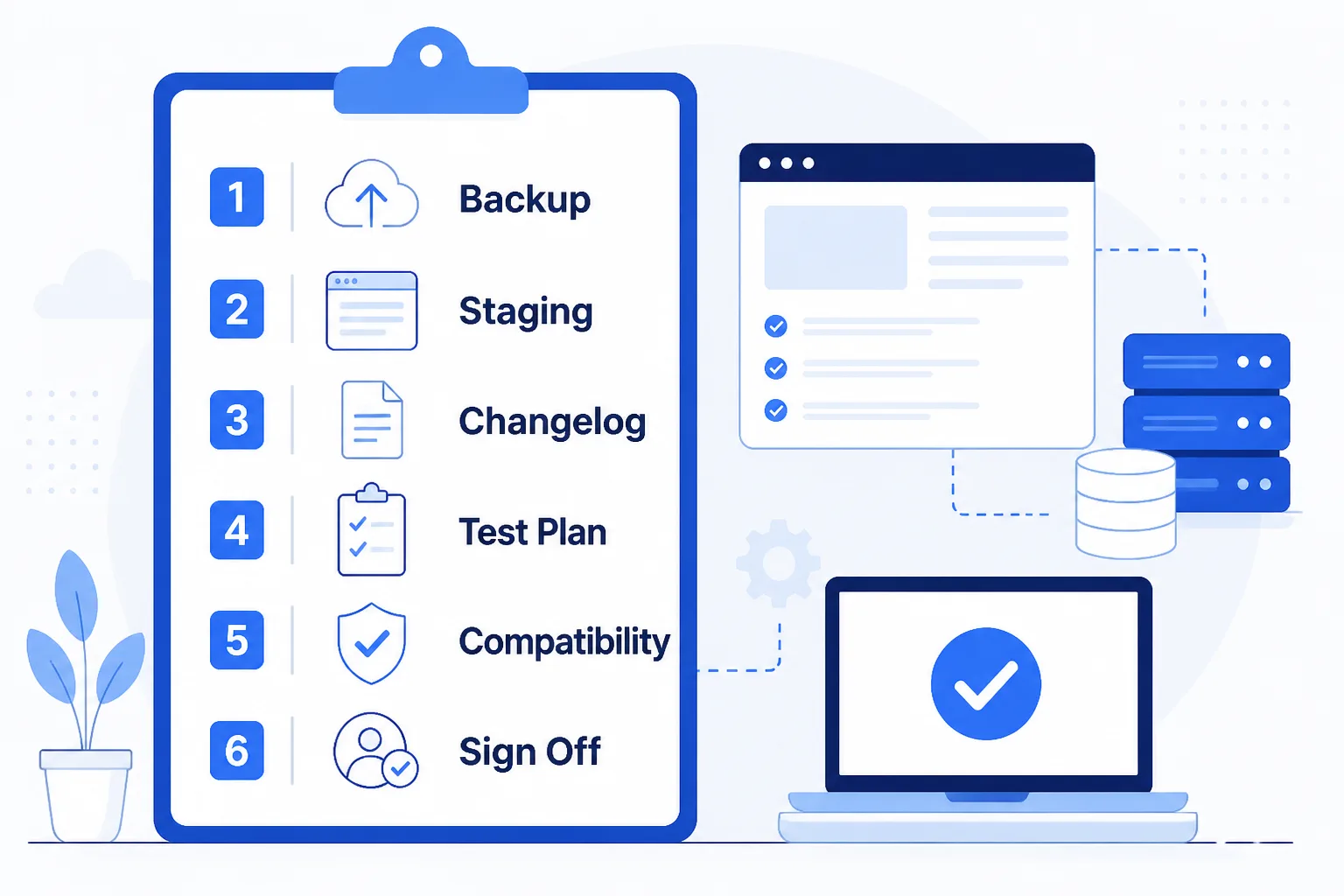
Allow time for a confirmed file-and-database backup, changelog review, PHP and WordPress compatibility checks, staging refresh, cache clearing, and post-update verification. If your update overlaps with a product launch or busy sales period, choose a quieter window instead.
The five-minute preflight before a routine update
Before you select Update, confirm that you can recover your site and test what matters:
- Access: Confirm that you can reach a WordPress administrator account and your hosting control panel.
- Versions: Record the current plugin, WordPress, PHP, theme, and server versions for your change log.
- Changelog: Read the plugin release notes and compatibility details for breaking changes, required settings, or migration steps.
- Backup: Confirm that a recent file-and-database backup exists and that you know how to restore it.
- Staging: Verify that you can access a staging copy and refresh it with current production data when appropriate.
- Journeys: List your critical checks, including login, navigation, forms, email delivery, checkout, payment confirmation, and external integrations.
Choose dashboard, manual, or staged deployment
Use the WordPress dashboard for a routine, uncustomised, low-risk plugin with a clear update path. Use a manual package when a premium plugin’s dashboard package is unavailable, and verify that the download comes from the vendor account you trust.
Choose staged deployment when the plugin affects customers, has local customisations, connects to payments or email, or includes a security-critical change. If your team lacks staging or rollback access, an accountable partner can handle that route, provided you supply accurate hosting access and a usable backup.
Run updates through a safe staging-to-live workflow
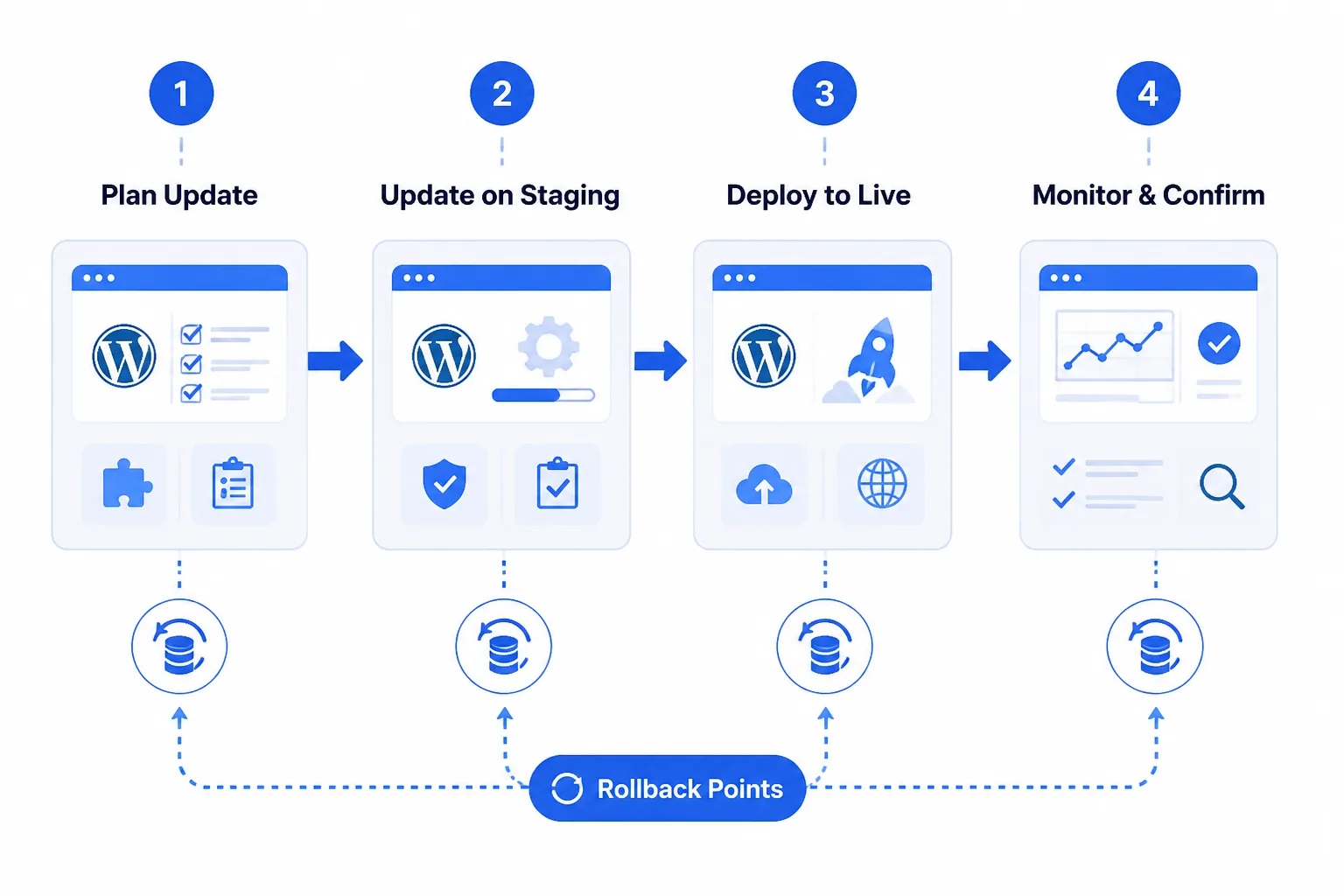
You have a safer path than updating production first and hoping visitors find no damage. Move one approved plugin version through a recorded staging process, then repeat the checks after deployment.
Your acceptance standard is simple: critical journeys work, settings remain present, and logs show no new fatal errors. If a layout breaks, an email fails, or a transaction cannot complete, stop before production changes spread.
Record the current state and create a restorable backup
Record the plugin name, current version, intended version, changelog, active customisations, and update time. Create a file-and-database backup, then restore it in a separate location or confirm its integrity through your host before you continue.
Weak example: “Update WooCommerce and check the site later.”
Strong example: “WooCommerce 9.4.2 to 9.4.3, backup verified at 9:00 p.m., staging refresh approved, rollback owner assigned.”
If you use the dashboard, select the individual plugin and choose Update Plugins, which GoDaddy documents as the standard route for an individual plugin update.
Test the update on staging before production
Refresh staging from production, apply the update there, and inspect the changelog for migrations, deprecated functions, template changes, or required extensions. For a premium plugin without a dashboard package, upload the verified vendor package manually. Never overwrite customised plugin files. Move custom behaviour into a child theme or custom plugin first.
- Access: You can log in as an administrator and open key settings without missing fields.
- Front end: You see correct responsive layouts, navigation, and product pages.
- Transactions: You can submit forms, receive emails, register accounts, and complete a test checkout.
- Integrations: You confirm payment, shipping, analytics, CRM, and API connections still respond.
Deploy the approved version and verify critical journeys
Deploy during your agreed window only after staging passes. Update production, then repeat login, navigation, form, email, checkout, order, account, and integration checks. A broken layout, missing setting, failed email, or unsuccessful transaction means the update is not done.
Roll back when the checks fail
Stop new orders or submissions only if your incident plan requires it, record the failure, and restore the verified backup or previous plugin package. Do not improvise file edits on production while customers are active. Your team still needs accurate access and a usable backup for any rollback route.
Fix the update mistakes visitors notice first
A failed plugin update often appears as a customer problem first. You may see an abandoned checkout, a broken form, missing styling, or a blank screen before your team notices the dashboard warning.
Use the symptom to choose a safe first response, not to justify blind file edits. Preserve evidence, protect active customer journeys, and return the change to staging before trying another fix.
Symptoms, likely causes, and first fixes
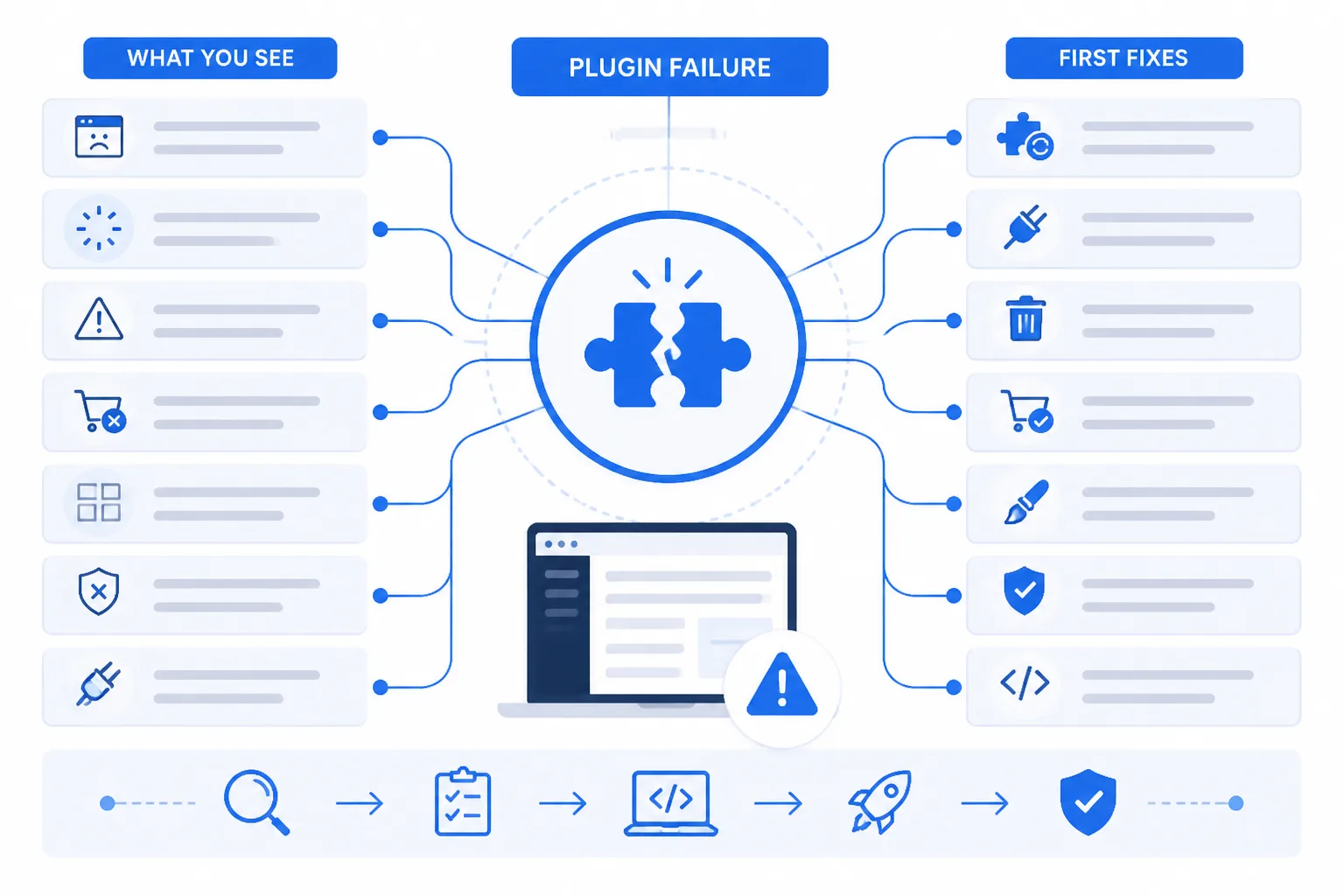
Use the table to identify where to start. If your site is accepting orders or leads, pause only the affected journey when necessary and record the plugin version before restoring anything.
| symptom | likely cause | first fix |
|---|---|---|
| Checkout or order submission fails | WooCommerce or another customer-facing plugin is incompatible with the updated WordPress, theme, PHP, or database structure | Stop transactions if necessary, restore the verified backup, then test the update and database changes on staging |
| Front-end layout or styling is broken | Theme-plugin inconsistency, changed templates, or stale site and browser caches | Check the changelog, clear relevant caches, and compare the affected templates and styles on staging |
| Custom functionality disappears | Direct edits to plugin files were overwritten by the update | Restore the prior version if required, then move the customisation into a custom plugin or child theme |
| White screen or fatal error | Plugin and WordPress incompatibility, an outdated PHP version, or a conflicting extension | Disable the affected plugin through available recovery access, review requirements, and roll the change through staging |
| Settings or stored data appear missing | The update changed settings or database structures | Do not resave or overwrite data blindly; inspect the changelog and restore the database backup if data integrity is uncertain |
| An update appears without review | Automatic updates are enabled for a plugin whose risk was not assessed | Pause automation for customer-facing plugins and document the version before retesting on staging |
When automatic updates are reasonable
You may automate low-risk, admin-only plugins when your backup, monitoring, and recovery access are reliable. Automation saves review time, but it cannot judge whether your theme, PHP version, custom code, or integrations are ready.
What works
- Low customer impact: Choose plugins used only inside your dashboard.
- Recorded versions: Keep update logs so you can connect a failure to a change.
- Recovery access: Confirm that you can disable the plugin without relying on the broken dashboard.
What fails
- Broad automation: Automatic updates for WooCommerce, forms, registration, or multilingual plugins can bypass essential journey tests.
- Hidden front-end risk: Popups, galleries, media tools, and account features may fail only for visitors.
- Unreviewed settings: A database or configuration change can remain unnoticed after the homepage appears normal.
When a manual or staged update is safer
Use manual review for WooCommerce, complex forms, multilingual tools, registration, popups, galleries, media, and other front-end plugins. A weak setting is “Enable automatic updates” for WooCommerce on a live store.
Strong setting: Disable automatic updates for WooCommerce, test version 9.8.2 on staging, and approve production deployment after checkout and email checks pass.
After recovery, document the cause, plugin version, rollback, and corrective test. Your team still needs accurate access and a verified backup.
FAQ
How long does a WordPress plugin update take
A small plugin update often takes only a few minutes to install, but the full task includes a backup, staging check, visitor-journey test, and release record. Allow 15 to 30 minutes for a straightforward change. A plugin tied to payments, memberships, forms, or custom code may need more testing before you approve production.
How long do WordPress changes take to appear
Most plugin changes appear as soon as the update finishes, but caching can delay what you see. Check the site in a private browser window, clear the relevant page or object cache, and confirm any content delivery cache has refreshed. If the old behaviour remains after those checks, review the plugin settings and server logs.
How long should you test a WordPress update
Test until you have covered the visitor journey affected by the plugin, not until a set number of minutes has passed. For a contact form, submit a test entry and confirm delivery. For a store, check checkout and payment status. A simple plugin may need 10 minutes of checks, while a critical integration deserves a longer staging review.
How long does it take to roll back a WordPress update
A prepared rollback can take a few minutes to start, but restoration time depends on your backup tool, hosting setup, and database size. Record the exact recovery steps before release. After restoring, check the homepage, login, forms, checkout, and any other affected journey. Don't close the incident until the site is working and the cause is recorded.
Start with one documented plugin update
Your next update doesn't need to become a site-wide cleanup. Choose one non-critical plugin, give the work a clear record, and treat the change like a small release that you can test, verify, and reverse.
Reliable plugin updates are repeatable release operations, not isolated clicks. If your site has staging, begin there. If production is the only environment, creating a representative staging copy is the first task.
The six-step update habit
- Choose and record: Select one non-critical plugin and note its current version, purpose, and the visitor journey it supports.
- Verify the backup: Create a file-and-database backup, then confirm that the backup exists and can be restored.
- Test on staging: Apply the update to staging and check for errors, layout changes, warnings, and failed integrations.
- Schedule the release: Run the approved update during a suitable maintenance window, not during a campaign or busy sales period.
- Check the journey: Test a startup lead form, an e-commerce purchase, or a membership registration from the visitor's perspective.
- Document the result: Record the observed version, test evidence, outcome, and exact rollback path before closing the task.
Start with one staging copy
Make the first task small enough to finish today. Your staging copy, verified backup, and one documented plugin update will create a working pattern that your team can repeat.
- Plugin record: The plugin name, purpose, current version, and target version are written down.
- Backup proof: The backup location and restoration check are recorded.
- Staging evidence: The updated version and visitor-journey checks are captured.
- Rollback path: You know who restores the backup and which version must be recovered.
If you want a faster way to make plugin updates repeatable, ShieldThemes establishes staging, verifies backups, coordinates hosting, and provides ongoing maintenance for startups and growing businesses. Its WordPress maintenance guidance gives you practical direction before production changes.