
How to Disable Comments in WordPress
Discover how to stop unwanted comments on your WordPress site while preserving important feedback. Learn when to use built-in settings or a plugin for full control.


You open your WordPress dashboard between meetings and find another spam comment, another notification, and another moderation task competing with the work that grows your business. If you need to disable comments in WordPress, the goal is to reduce that noise without creating new maintenance problems.
Most site owners don’t have a comment problem. They have an unwanted-interaction and maintenance problem. Blogs, communities, and support-led websites may need discussion, but a company site, portfolio, or campaign page often gains little from public comment forms.
The right approach settles the plugin-versus-built-in-settings choice, explains what happens to existing comments, and checks spam exposure, editor controls, accessibility behavior, forms, and caches.
You’ll get a reversible process that starts with a backup and ends with a front-end test. An ongoing maintenance partner such as ShieldThemes can help when comment settings sit alongside security, hosting, or wider WordPress upkeep. A WordPress backup and restore guide fits the same workflow before you change site-wide behavior.
Choose the Safest Comment Shutdown Before You Touch Settings
You may only need to stop new comments, not erase years of customer questions, product feedback, or search-relevant discussion. That distinction matters because keyword research records 170 monthly searches for this recurring WordPress task, yet the safest fix depends on your site’s purpose.
WordPress Discussion settings offer a narrow change. A dedicated plugin offers broader control, but also creates another component to maintain. Choose the smallest change that solves your problem, then test your theme, page builder, forms, and cache before treating comments as fully disabled.
When built-in Discussion settings are enough
If you want to stop comments on future posts, use WordPress’s built-in Discussion settings first. You can preserve existing discussion while preventing new participation, which suits a blog, resource centre, or community page where older comments still help visitors.
Weak example: “Disable comments everywhere” without checking whether support answers remain useful.
Strong example: Turn off “Allow people to post comments on new articles,” while keeping existing comments visible on your 2024 “Small Business Website Costs” guide.
When a site-wide plugin is the better route
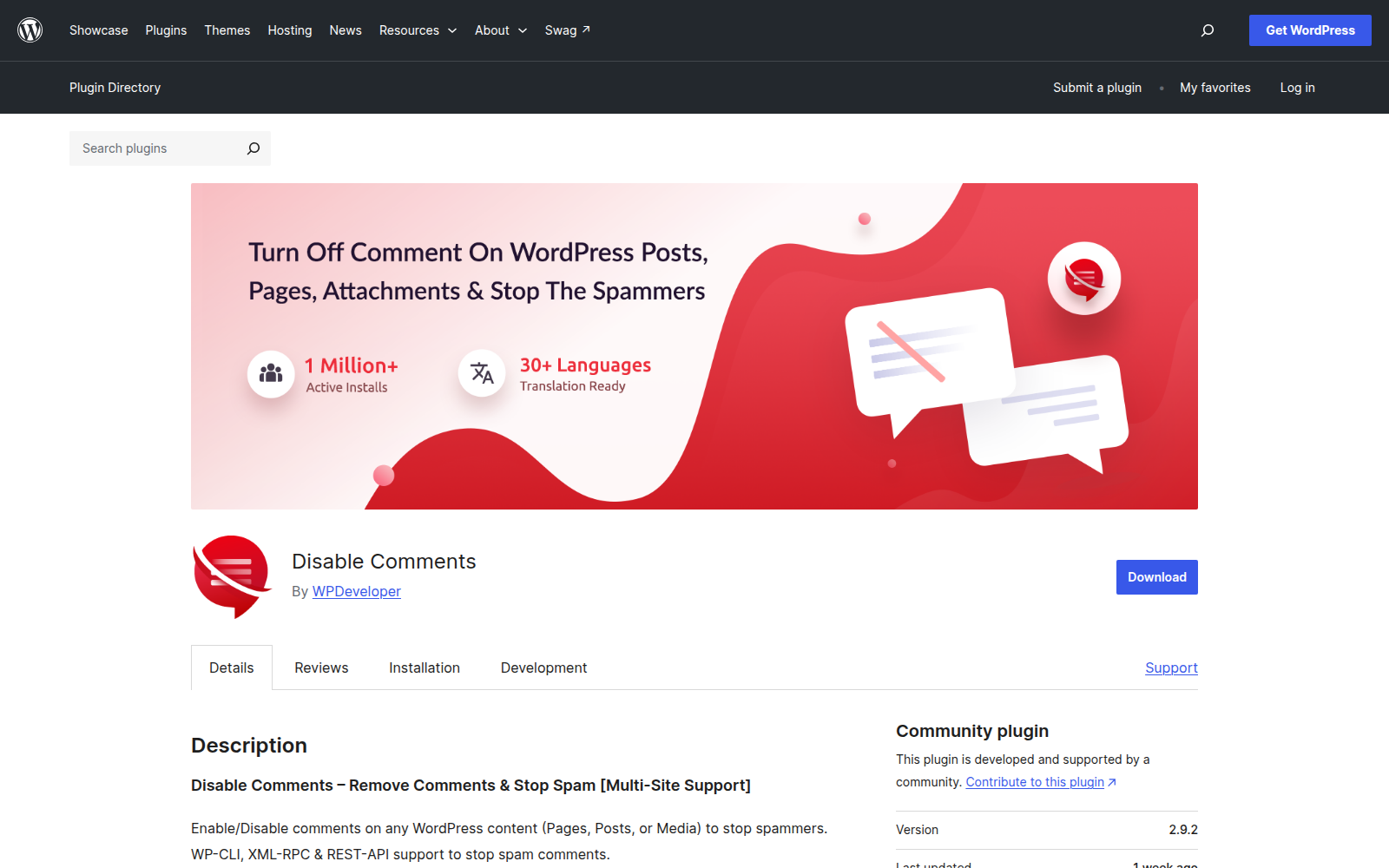
Choose a maintained Disable Comments plugin when you need a consistent shutdown across posts, pages, custom post types, trackbacks, and pingbacks. The WordPress Plugin Directory says the plugin can disable comments, trackbacks, and pingbacks across a site or network.
The Disable Comments plugin can disable comments, trackbacks, and pingbacks across a site or network, according to the WordPress Plugin Directory.
A plugin may also remove comment forms and related dashboard controls that built-in settings leave available on a customised installation. Back up your site first, especially if comments contain customer history.
Practical rule: Preserve discussion when it supports your business or SEO, use built-in settings for limited future-content control, and use a maintained plugin for a consistent site-wide shutdown after a backup.
What disabling comments changes for visitors and administrators
Disabling participation is not the same as deleting stored comments. Visitors may lose comment fields, reply links, and moderation prompts, while administrators may lose comment menus or controls. Your theme, forms, accessibility labels, page builder templates, and cached HTML can still display old elements until you test and clear the relevant cache.
ShieldThemes can handle this WordPress maintenance alongside security and hosting, although a focused in-house check may be enough for a small site. If your settings change touches plugin updates, this safe WordPress plugin updates guide fits the same workflow.
Why a maintained plugin matters more than a nulled plugin download
A nulled plugin download can add hidden code, outdated dependencies, or an unpatched security flaw while appearing to solve comments. You need a plugin with a visible source, recent compatibility work, and a clear removal path, not a free file that leaves your site exposed.
Install the Plugin and Turn Off Comments Across WordPress
You can disable comments in WordPress without affecting publishing, pages, or your editor. Start with a backup, apply the change site-wide, and test what visitors see.
If your business site is critical, use staging first. You need to distinguish a plugin disabling comment behaviour from a theme or custom template that still displays comment markup.
Back up the site and record the current comment state
Back up your files and database before changing comment settings, and record whether your site uses comments, trackbacks, pingbacks, or custom post types. Note any page builder templates that control post layouts.
Before: The Discussion settings allow comments, pingbacks, and trackbacks, but no backup exists. After: A restorable backup is available, and you know which content types currently show discussion features.
How to turn off comments in WordPress
Open your dashboard and select Plugins > Add New. Search for a maintained Disable Comments plugin, review its update and compatibility information, then install and activate it.
Choose a plugin with a visible developer, recent maintenance, and a clear settings screen. After activation, open its settings rather than assuming installation disabled anything.
Install and activate a maintained disable-comments plugin
Use the plugin's settings to select the broadest appropriate scope, usually the entire site. Avoid choosing only posts when your pages, custom post types, or older content also need comments disabled.
Before: “Disable comments on posts only” is selected. After: “Disable everywhere” or the plugin's equivalent site-wide option is selected, including comments, trackbacks, and pingbacks where available.
Confirm that comments are off
Comments are off when the plugin reports that its site-wide setting is saved. The editor should no longer present an active comment form or discussion option for affected content, although the WordPress editor, publishing tools, and posts remain available.
Select the site-wide scope and confirm the change
Save the site-wide setting, then check a representative post, page, and custom post type in the editor. Clear your page, object, CDN, and browser caches before testing the public site.
- Editor: You see no usable comment controls on affected content.
- Logged-out post: You see no comment form or submission controls.
- Dashboard: You see no new comment moderation task for the tested content.
- Mobile view: You see no leftover comment area or broken spacing.
Why disabling comments doesn't disable posts
You do not disable posts to stop comments. The plugin disables commenting behaviour, while your posts, pages, publishing workflow, and WordPress editor continue working normally.
Check posts, pages, forms, and the WordPress dashboard
Check the logged-out front end on desktop and mobile, then inspect page builder layouts and custom templates for leftover comment markup. Multipurpose themes may still render an empty comments container, and custom post templates may require developer changes even after the plugin works correctly.
Existing comments may remain stored unless you separately remove them, so review the Comments screen before deleting anything. If your theme still exposes markup or a form, ShieldThemes can handle the compatibility work as part of WordPress maintenance and security, although a focused template fix may be enough for your site.
Fix the Failures That Make Disabled Comments Reappear
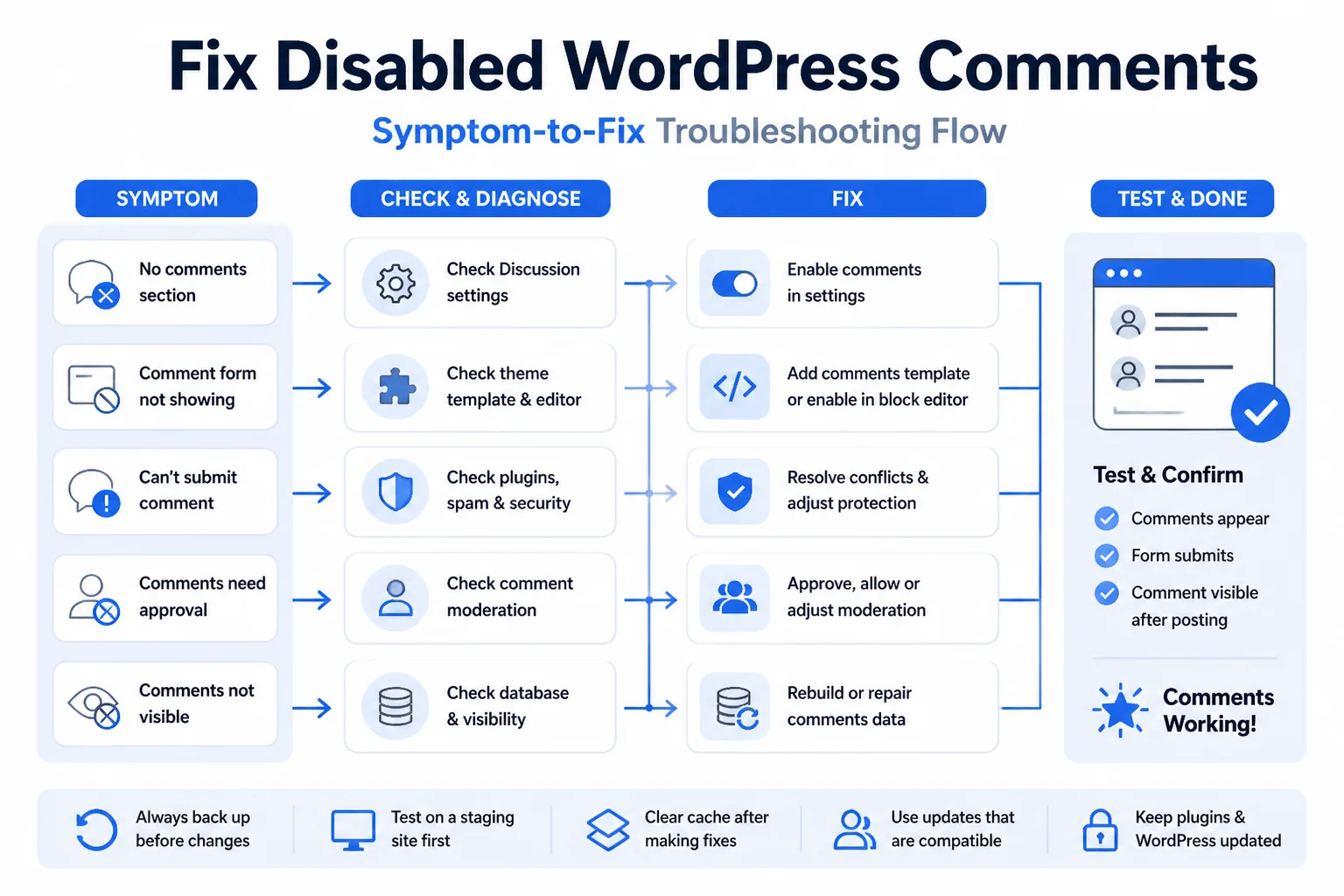
You may disable comments in WordPress and still see a form, spam alert, or comment menu. Another layer may be bypassing the setting, serving an older page, or keeping existing data visible.
Use the visible symptom to find the likely cause. You can then fix the narrow problem without deleting useful customer questions or changing unrelated parts of your site.
| symptom | likely cause | first fix |
|---|---|---|
| A comment form still appears on a post | The theme, page builder, or custom template renders its own comment markup | Inspect the template and disable or remove the custom form, then retest while logged out |
| Spam submissions continue | Existing open content, third-party forms, or separate submission endpoints remain active | Review open content and external forms, preserve useful comments, and block or remove unused entry points |
| Comment-related dashboard menus remain | The plugin is scoped to posts or selected content instead of the whole site | Check the plugin's site-wide setting and activate the broader scope if appropriate |
| Visitors still see the old comment state | Page, hosting, CDN, or browser cache is serving stale HTML | Purge site and CDN caches, refresh the browser, and verify in a private window |
Comment forms still appear on some templates
If a comment form still appears, inspect the theme, page builder, or custom post template for its own form markup. A plugin may stop normal WordPress comments while a hard-coded form remains active.
Weak example: “Hide comments” is enabled, but the template still calls a custom Leave a Reply block.
Strong example: Remove the custom reply block from the product template, then test the page while logged out on desktop and mobile.
Spam continues after the plugin is active
Spam can continue through existing open content, contact tools, review widgets, or separate submission endpoints. Review each entry point rather than assuming every submission uses WordPress comments.
- Preserve useful records: Export or retain genuine questions, product feedback, and approved discussions before cleanup.
- Remove obvious abuse: Review spam, trash, and moderation queues before deleting anything in bulk.
For wider protection decisions, this guide to WordPress security plugins and firewalls fits the same maintenance workflow.
Old comments and dashboard menus need separate cleanup
To clean up WordPress, back up your site, review comments and queues, and then remove only records you no longer need. Disabling new submissions does not erase stored comments or necessarily hide every dashboard menu.
Weak example: The plugin setting says “Posts only,” while pages and custom post types still accept discussion.
Strong example: Set the scope to “Entire site,” confirm the applicable post types, and retain approved comments before removing spam.
Cache and accessibility checks fail after the change
To flush the cache in WordPress, clear the page-cache plugin first, then the hosting cache, CDN cache, and browser cache. Test in a logged-out private window after each layer is refreshed.
Accessibility also matters. Remove inactive controls or hide them correctly from assistive technology, rather than making a visible form transparent while leaving it focusable. If custom markup bypasses normal WordPress behaviour, have a developer inspect the theme templates. ShieldThemes can handle that maintenance and security work, although a focused template fix may be enough for your site.
WordPress Comment Decisions, Platforms, and Site Longevity
Your comment setting is a site decision, not a verdict on WordPress itself. You can preserve useful discussion, choose a platform that fits your resources, and keep your growth plans intact when you separate stored data from visitor access.
Does disabling comments delete them
Disabling comments does not inherently delete comments already stored on your site. You will usually keep the existing discussion in your WordPress database while preventing new submissions. Before changing the setting, create a backup and decide whether visitors should still read historical comments. If you need to remove old content, delete it separately and confirm the retention policy you want.
Is WordPress becoming obsolete
WordPress is not becoming obsolete, but you still need to maintain it properly. You retain control over hosting, themes, plugins, content, SEO workflows, and custom features, which suits businesses with specific requirements. Poor updates, weak security, or an overloaded plugin stack can create problems on any platform. Your decision should reflect your team, budget, risk tolerance, and need for customisation.
Is WordPress still a thing in 2026
WordPress remains a practical choice in 2026 when you need ownership and room to build. You can run a marketing site, publication, store, membership service, or custom integration with the right hosting and maintenance plan. ShieldThemes can support ongoing maintenance, security, hosting, or custom development, but you still need clear ownership of content, access, costs, and technical decisions.
Why Wix may be better than WordPress
Wix may be better for you when a hosted builder and simpler administration matter more than deep control. You avoid much of the server and update work, while WordPress gives you broader customisation, hosting choice, and portability when properly maintained. Compare your SEO process, content model, integrations, budget, and growth plans rather than choosing from platform headlines alone.
FAQ
How can I turn off comments in WordPress
Open the WordPress dashboard and go to Settings > Discussion. Clear the option that allows people to submit comments on new posts, then save your changes. To change older content, edit the post or page, open its discussion settings, and disable comments there. A maintained plugin can help apply the change across selected content.
Does disabling comments delete them
Disabling comments usually stops new submissions without deleting comments already stored in your database. Existing comments may remain visible unless you also close the comment area, remove them manually, or use a plugin with a deletion option. Before changing the setting, confirm whether you need to preserve customer questions, feedback, or moderation records.
How do I turn comments off
You can turn comments off globally under Settings > Discussion, or disable them for an individual post from its editor settings. Check both new and older content, because a site-wide setting may not change posts that already have their own discussion configuration. Clear caches and view a few posts as a visitor after saving.
How do I disable posts on WordPress
Disabling comments isn't the same as disabling posts. To prevent a post from appearing publicly, move it to Draft, Private, or Trash, depending on whether you need to keep it for later. If you need to restrict publishing for a team member, adjust their user role or use editorial controls rather than changing comment settings.
Is WordPress becoming obsolete
No. WordPress remains a practical choice for sites that need a flexible content management system, but it still requires updates, security checks, and ongoing maintenance. The right decision depends on your content, team, integrations, and hosting needs. If your site has custom features, an accountable partner and a clear maintenance plan can reduce avoidable issues.
Use a Five-Step Maintenance Routine After Comments Are Off
Comment removal isn't the end of the work. Updates, caches, templates, and old content can change what visitors see.
Use the routine below whenever you change comment settings or update a related plugin. You’ll protect useful history without confusing disabled comments with deleted posts.
1. Preserve the current state
Before you change anything, create a current backup of your files and database. You’ll have a clear recovery point if a theme or plugin behaves unexpectedly.
2. Select the right scope
Decide whether existing comments must remain accessible, even if new submissions stop. You may need to preserve customer questions, product feedback, or historical records.
3. Apply and verify the change
Install a maintained plugin and confirm whether its scope covers posts, pages, custom post types, or the entire site. Check that disabling comments does not disable publishing or editing.
4. Clear caches and test templates
Clear your site, hosting, CDN, and browser caches after saving the setting. Test representative posts, pages, mobile views, editor behaviour, and comment-related template areas.
5. Schedule a maintenance check
Review the result after plugin or theme updates. Test keyboard access, screen-reader labels, and every known spam entry point so your change remains usable and complete.
- Back up: Save a current database and file backup before changing your comment state.
- Protect history: Confirm whether existing comments remain visible, searchable, and accessible to you.
- Set scope: Open WordPress admin, go to Plugins > Add New, confirm the current state, and install a maintained plugin that matches your site.
- Refresh and test: Clear every relevant cache, then test representative content, mobile layouts, keyboard navigation, screen-reader labels, and editor behaviour.
- Recheck: Test spam entry points again after updates and record any template or custom-theme issue.
- Done means: Your backup exists, historical comments have a clear status, the plugin scope is documented, caches are cleared, and visitors see the intended result.
If you want a faster way to do this, ShieldThemes provides ongoing WordPress maintenance, security, hosting, and custom-theme compatibility support for startups and growing businesses. You can also find practical WordPress maintenance guidance for future site decisions.