
WordPress Security Plugin vs. a Firewall
Explore how WordPress security plugins and firewalls differ in traffic filtering, visibility, and performance to choose the right protection for your website.


Your campaign is live, but checkout pages suddenly crawl. Then you spot unfamiliar login attempts and traffic in your analytics that doesn't look human. You need to protect your WordPress store, and the WordPress security plugin vs. a firewall decision starts with where each layer acts.
Most growing businesses don't have a security-product problem. They have a protection-layer problem. A security plugin works inside WordPress, and many include an endpoint firewall. A separate server or edge firewall filters traffic before your site loads, so the two options don't always compete.
The real choice is about where protection acts, what it can see, and who responds when something looks wrong. Your small brochure site may need a different setup from an ecommerce store handling customer data.
Match the traffic path to your business priority. Then decide whether one layer is enough or whether combining both gives your business better control.
Judge Protection by Where It Acts, What It Sees, and What It Costs
You need more than a feature list when campaign traffic, checkout, and support all depend on WordPress. Start with the traffic path: does protection act before hosting receives a request, or after WordPress begins processing it?
Visibility and ownership matter too. A startup with limited engineering time may value simpler response, while an ecommerce brand may need deeper WordPress activity records and more tolerance for traffic spikes.
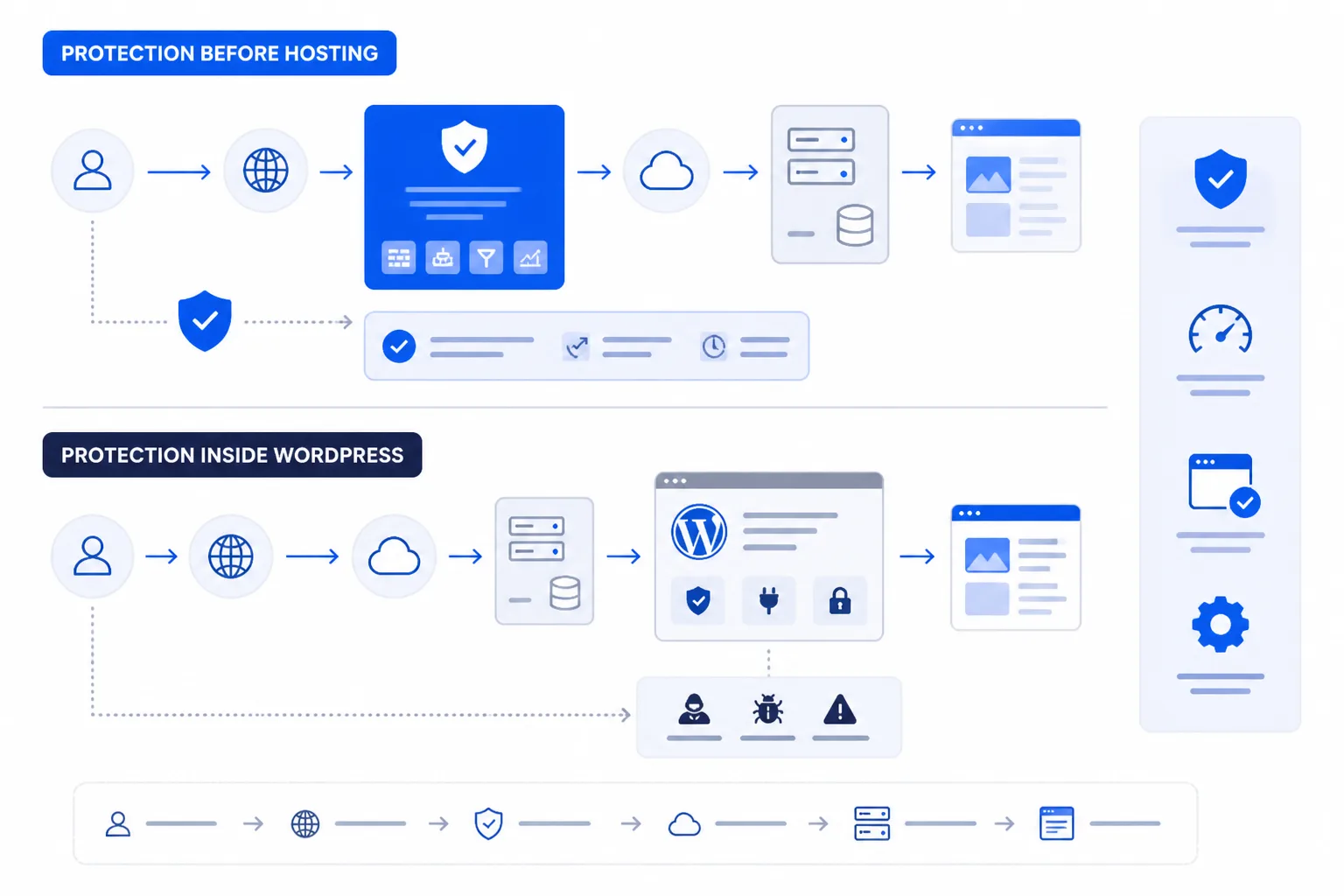
Traffic interception before or inside the WordPress server
Check where a control acts. Earlier filtering can reduce the requests reaching your host, while an application-level control can inspect what WordPress is doing after the request arrives. Neither location solves every risk.
Visibility into files, users, and WordPress activity
Ask what you need to see. A traffic filter can identify abusive sources and request patterns, but a WordPress-focused control can examine files, logins, user actions, and application behavior. Suspicious activity inside your admin area calls for that deeper context.
Performance, uptime, and attack-volume tolerance
High-volume attacks and slow checkouts create different problems. Wordfence explains that an endpoint firewall needs sufficient CPU and RAM to filter traffic without slowing legitimate visitors. Review hosting capacity before enabling heavier inspection.
Weak setting: "Firewall mode: Basic protection," with no record of where filtering occurs.
Strong setting: "Cloud filtering enabled before hosting; application firewall active for administrator and checkout routes."
Practical rule: Use earlier filtering for attack volume and WordPress-level inspection for suspicious activity inside your site.
Cost, ownership, and response responsibility
Compare subscription cost with staff time. You need to know who reviews alerts, adjusts rules, handles false positives, and responds when checkout availability matters. A low-cost tool can still become expensive if nobody owns its warnings.
- Traffic path: Confirm whether your host, DNS provider, or plugin filters requests before WordPress loads.
- Resource headroom: Check available CPU and RAM during campaign spikes, not only on an ordinary weekday.
- Alert ownership: Name the person responsible for reviewing security events and protecting customer access.
A WordPress Security Plugin Sees the Application from the Inside
A WordPress security plugin works close to the pages, users, files, and requests that make up your site. That visibility helps you understand suspicious behavior, but unwanted traffic may already be using hosting resources before the plugin evaluates it.
Wordfence explains that many popular WordPress security plugins include built-in firewalls, so you may be comparing an internal endpoint firewall with an external DNS firewall, not a firewall against no firewall. The better choice depends on whether WordPress-level detail or earlier traffic filtering matters more.

Where the plugin acts in the traffic path
Your plugin runs within or alongside WordPress, after the request has reached your hosting environment. It can apply rules at the application endpoint, but it cannot reliably absorb a large traffic surge before your server begins processing requests.
What application-level signals it can inspect
This layer can inspect login behavior, user activity, file changes, and WordPress-specific requests. It also supports hardening around the core environment, while an endpoint firewall may block known patterns before they reach a page.
Administrative view: Security events, blocked requests, affected files, and configuration warnings appear in your WordPress dashboard without pretending to show fabricated traffic totals.
What works
- WordPress visibility: You can investigate activity in the application your team manages.
- Useful context: You can connect suspicious requests with users, plugins, files, and login events.
- Accessible control: You can adjust protection without changing DNS or rebuilding your hosting path.
What fails
- Traffic absorption: You may still pay the server cost of unwanted requests before evaluation.
- Compatibility: Your security rules can conflict with plugins, APIs, checkout flows, or custom code.
- Alert ownership: You still need someone to review warnings, tune rules, and respond.
Performance limits during heavy malicious traffic
A plugin is a poor first barrier when your site faces high-volume abuse. You might see slower pages, rising CPU use, or an unavailable checkout before the internal firewall can help.
When plugin ownership becomes a business burden
Configuration quality matters. A weak setting such as "block suspicious traffic" gives nobody a usable decision. "Block requests scoring above 80, exclude the payment webhook, and email the security owner" gives your team a clear action.
Application visibility and earlier filtering solve different problems. Choose the plugin when WordPress-level evidence matters most, then add an external firewall when your hosting resources or customer access cannot absorb the traffic.
A Server or Edge Firewall Stops More Bad Traffic Before WordPress Loads
Filtering at your server or at a cloud edge creates a different protection boundary. Requests can be rejected before they consume WordPress workers, database connections, or checkout resources.
That earlier position helps during hostile traffic bursts. It also creates a visibility trade-off, because the filter may stop seeing the request once it passes into your application.
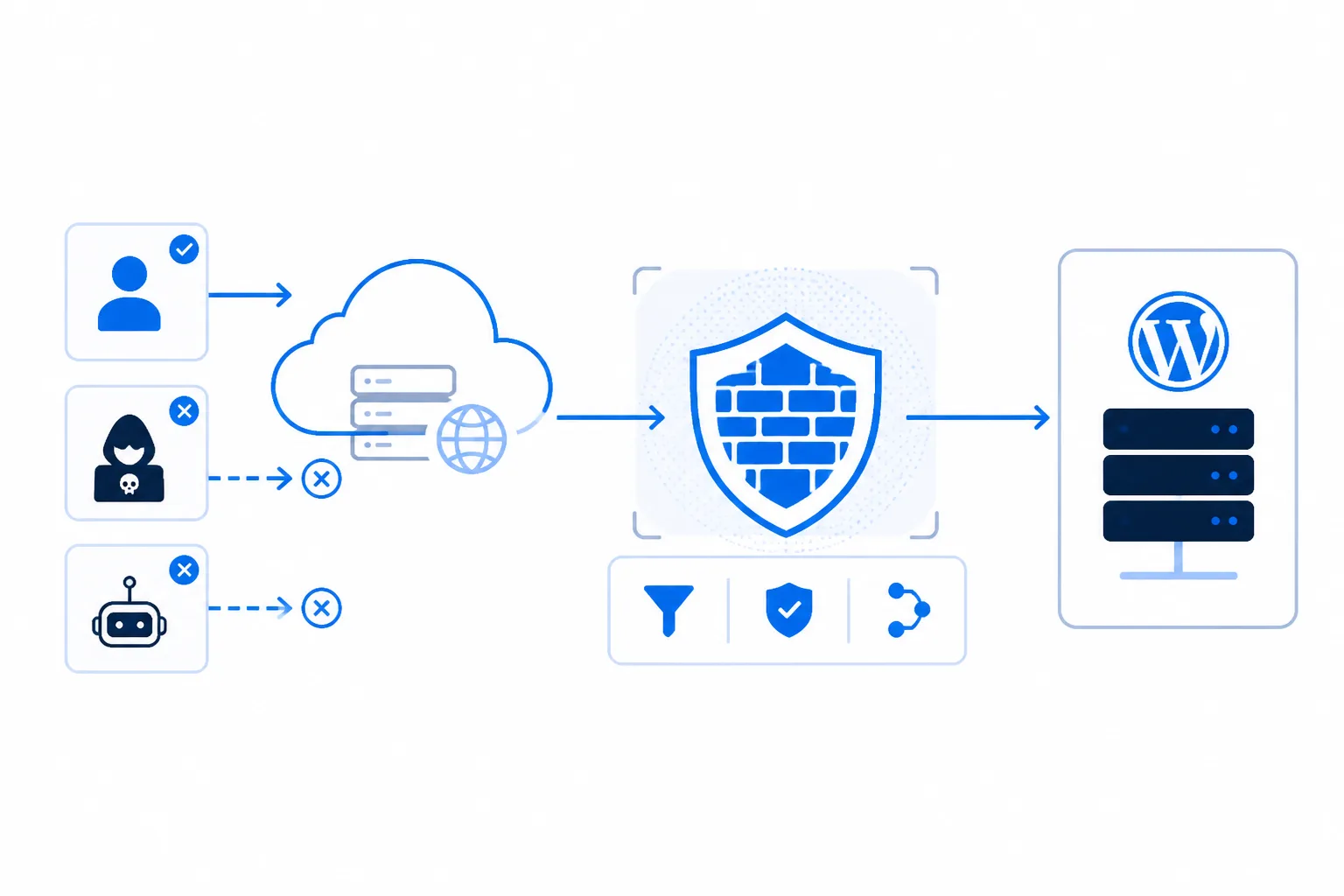
Where the firewall blocks requests in the traffic path
Request path: visitor or bot, cloud edge or server firewall, web server, WordPress, database. A firewall interprets incoming HTTP traffic and can screen automated bots, SQL injection attempts, and cross-site scripting attempts before normal WordPress processing, according to Wordfence.
The phrase "WordPress firewall" remains ambiguous. It may mean a plugin endpoint inside WordPress or an external service in front of it.
What works
- Earlier filtering: You reduce hostile requests reaching your application and hosting account.
- Burst control: You gain a stronger first layer for stores facing login floods or checkout-targeted traffic.
- Uptime focus: You protect scarce server capacity before WordPress starts handling each request.
What fails
- Limited context: You usually cannot see changed files, administrator behavior, or WordPress events from outside.
- Deployment boundary: You may need DNS, hosting, server, or account access to place the filter correctly.
- False confidence: You still need WordPress-aware inspection for problems inside the application.
Performance, uptime, and large traffic bursts
For your store, earlier filtering matters when traffic volume threatens hosting capacity. It reduces pressure, but no firewall guarantees uptime or blocks every attack.
When configuration and hosting access become decisive
A weak rule such as "block suspicious traffic" leaves your team guessing. Strong rule: "Challenge requests scoring above 80, allow the Stripe webhook, and alert the security owner." Your hosting plan, DNS control, and payment integrations determine whether that rule works safely.
Choose the Protection Layer That Matches Your WordPress Business Exposure
Your best choice follows the pressure your WordPress site creates. A small brochure site needs application visibility, while a busy store needs hostile traffic filtered before it reaches hosting.
Choose one primary layer, then add the second when exposure justifies it. Protection works best when each layer has a clear job, not when overlapping tools create conflicting rules.
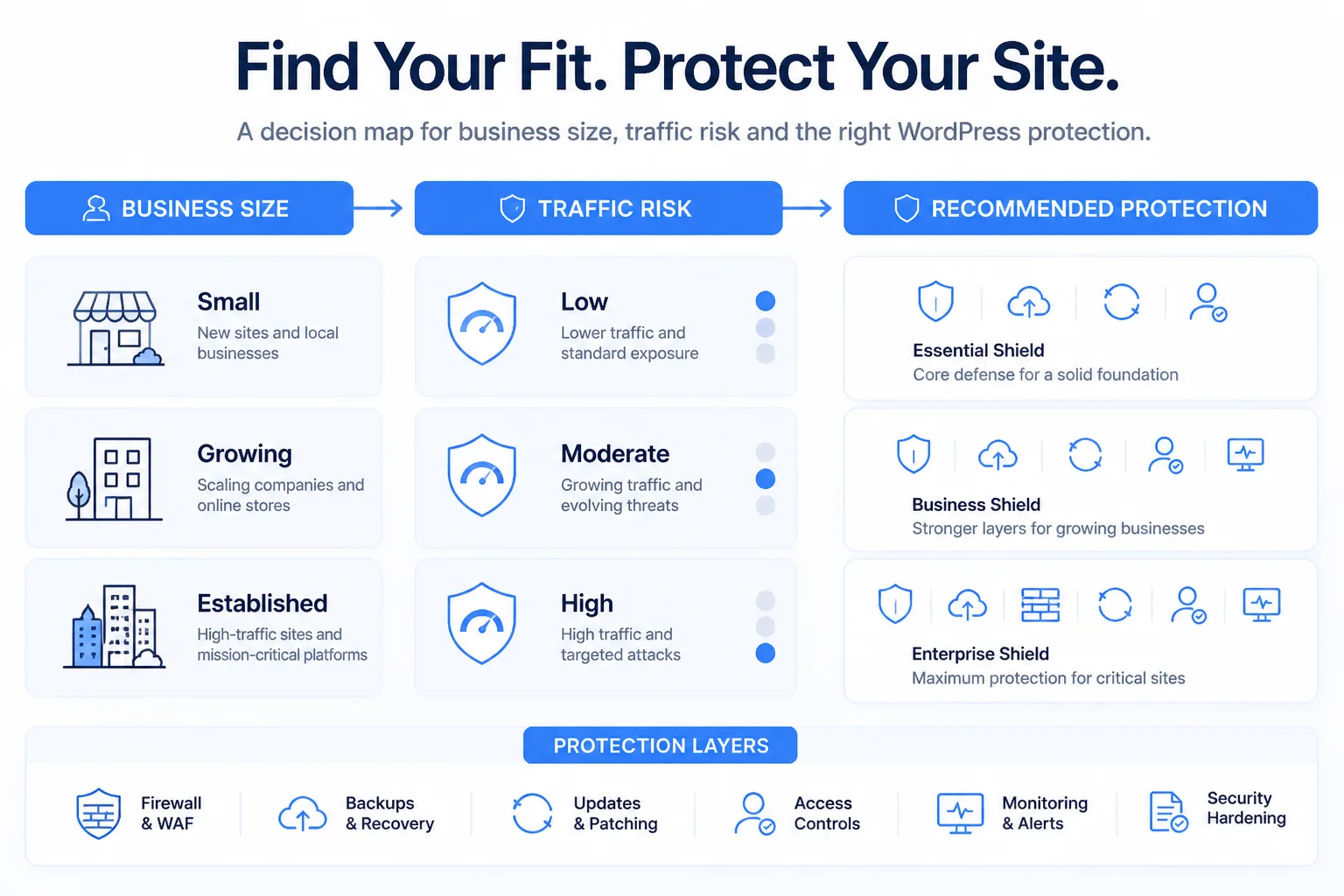
Small business with one WordPress site
Choose a reputable security plugin and a managed operating process. You’ll gain WordPress-level monitoring and hardening without adding edge infrastructure your site may not yet need.
| criterion | security plugin | edge |
|---|---|---|
| Where it acts | Within or alongside WordPress, commonly as an endpoint firewall | Before requests reach hosting or WordPress |
| What it can see | WordPress files, application activity, and user behavior | Incoming HTTP traffic patterns and request threats |
| Resource trade-off | Consumes hosting resources while inspecting requests and application activity | Can reduce hostile traffic reaching the server and support uptime-focused protection |
| Best fit | Small sites needing WordPress-level monitoring and hardening | Ecommerce or high-traffic sites prioritizing earlier filtering and availability |
Startup validating an MVP or launching quickly
Start with a security plugin if your MVP has modest traffic and needs application visibility. Add edge filtering before a launch campaign if traffic volume could strain your hosting plan.
Ecommerce brand protecting checkout availability
Choose an edge or server firewall first. Keep appropriate WordPress controls because earlier filtering protects capacity, while application visibility helps you understand activity around checkout and accounts.
Growing company that needs layered ownership
Choose both layers when you handle customer data, run frequent campaigns, or face repeated attacks. This pairing is complementary, not permission to install overlapping products without testing. Neither layer replaces responsible updates, secure hosting configuration, backups, access controls, or a response owner. Your ongoing process can follow this guide to safer WordPress plugin updates.
- Primary risk: Record whether your first concern is application activity or traffic volume.
- Hosting capacity: Confirm where filtering occurs and what your host can sustain.
- Ownership: Assign a person to review alerts and coordinate response.
- Testing: Verify payment, login, webhook, and campaign paths before enforcement.
Three WordPress Security Searches That Need a More Precise Answer
Search results may offer plenty of plugin names and broad promises, but your site needs a protection choice that fits its hosting, traffic, and response capacity. A product alone does not create an operating plan. You need clear answers about coverage, support, and where filtering happens.
Choosing the best WordPress security plugin
The best WordPress security plugin gives you the visibility your site needs, fits your hosting environment, receives dependable maintenance, and supports a clear alert-response process. Check whether you can understand its alerts, configure it without conflicts, and assign someone to act when it detects suspicious activity. There is no universal winner for every WordPress site.
Free WordPress security plugins
Yes, a free WordPress security plugin can give you a reasonable starting application layer for a small site. Before relying on it, check its coverage, configuration burden, support options, and ability to fit your traffic and response needs. You may still need paid support, stronger hosting controls, or earlier traffic filtering as your business becomes more exposed.
When you need a WordPress firewall
You need some form of request filtering, but the right placement depends on your exposure. An application firewall may suit a modest site where WordPress visibility matters most. An edge or server firewall becomes more valuable when hostile traffic threatens uptime, consumes hosting capacity, or reaches your store in damaging volume. You still need an owner to review alerts and coordinate action.
Map Your Traffic Path Before You Buy Another WordPress Security Tool
When protection tools overlap, you may still miss the request that matters most. See how login, checkout, administrator, and API traffic reaches your WordPress site before adding another product.
Start with one control page, then make one clear decision. You’ll get better coverage by filling the missing boundary than by stacking tools that inspect the same traffic.
Map login, checkout, and admin traffic
Write down which requests affect your business first. Use this checklist:
- Login: You can identify the customer and administrator login paths.
- Checkout: You can locate cart, payment, and order requests.
- Admin: You know which administrator and API endpoints require access.
Mark the current protection boundary
Open your hosting control panel or DNS provider’s firewall settings page. Mark whether each control acts at the edge, server, or WordPress application, then note which high-risk requests remain exposed.
Add the missing layer and test real users
Choose the missing layer instead of buying another overlapping plugin. Test page performance, checkout behavior, and legitimate administrator logins during a controlled window.
Assign alert review and response ownership
Your plan needs a named person or service to review alerts, decide what requires escalation, and coordinate response. Follow this order:
- Identify: You list the requests with the greatest business impact.
- Map: You record where hosting, DNS, server, and WordPress controls act.
- Choose: You add only the missing protection layer.
- Test: You verify speed and legitimate access before treating the change as complete.
- Assign: You name who reviews alerts and starts the response.
ShieldThemes can connect WordPress maintenance, hosting, and security responsibilities when you need one accountable plan. That approach matters more than collecting products.
If your map shows an exposed boundary or an unclear owner, take the next step before buying another plugin. Ask ShieldThemes for help reviewing the traffic path, testing the missing control, and assigning ongoing maintenance using practical WordPress development guidance. Start with the requests that protect revenue and access.